
 Guide
Guide
06 — Selling food
For waiters, the kitchen and cashiers. This is the work of every service.
1. How a sale moves
Waiter                 │ Kitchen                         │ Waiter              │ Cashier
───────────────────────┼─────────────────────────────────┼─────────────────────┼──────────────────────────
Seat guests, take the  │ To cook ─Start cooking─▶        │ Serve, then         │ Print bill, record
order, Send to kitchen │ Preparing ─Mark ready─▶ Ready   │ Request bill        │ payment, print receipt
The table's colour on the floor plan follows the order:
| Table shows | Means |
|---|---|
| Available | Free |
| Seated | Guests sat down, nothing sent to the kitchen yet |
| Dining | Food ordered or served |
| Ready to pay | The waiter asked for the bill; the cashier can take payment |
2. Before you start
- The floor plan has tables (chapter 02) and the catalog has dishes (chapter 03).
- Each person is signed in with their own role and name (chapter 01).
3. Take the order (waiter)
Table services, tap the table on the floor plan.
Seat guests, type the number of Guests, then Open table. The order screen opens.
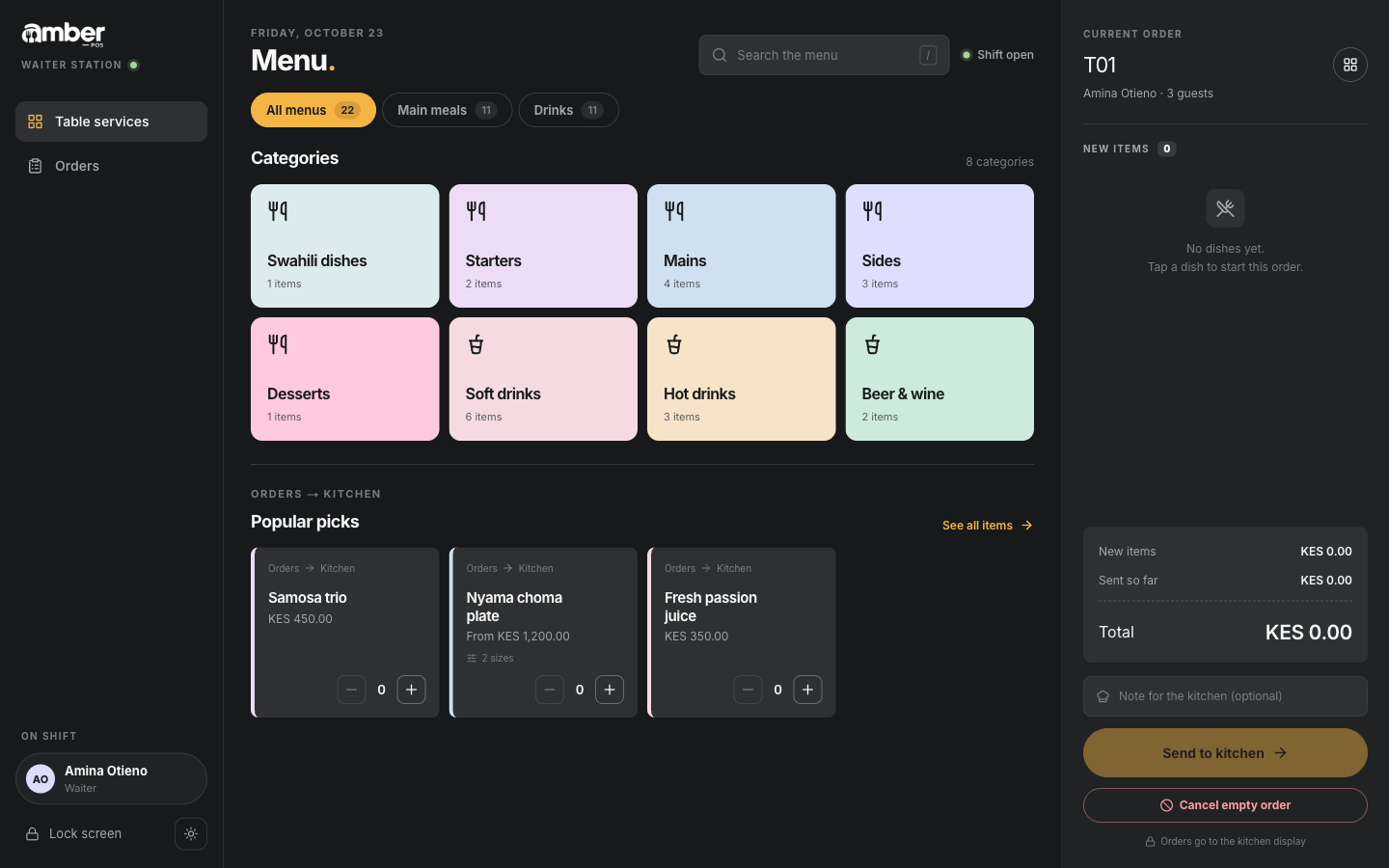
The order screen: menu on the left, the table's order on the right Find a dish: tap a menu (Main meals, Drinks) and a category, or type in Search the menu.
Tap the dish to add it. Tap + to add another, − to take one off. Dishes and drinks linked to stock show how many are left, for example 24 left.
A dish with sizes or extras opens a small window first:
- Size: pick one (required).
- Add-ons: tick any paid extras.
- Kitchen note: for example
Less chilliorAllergy: nuts. - Add to order · KES …
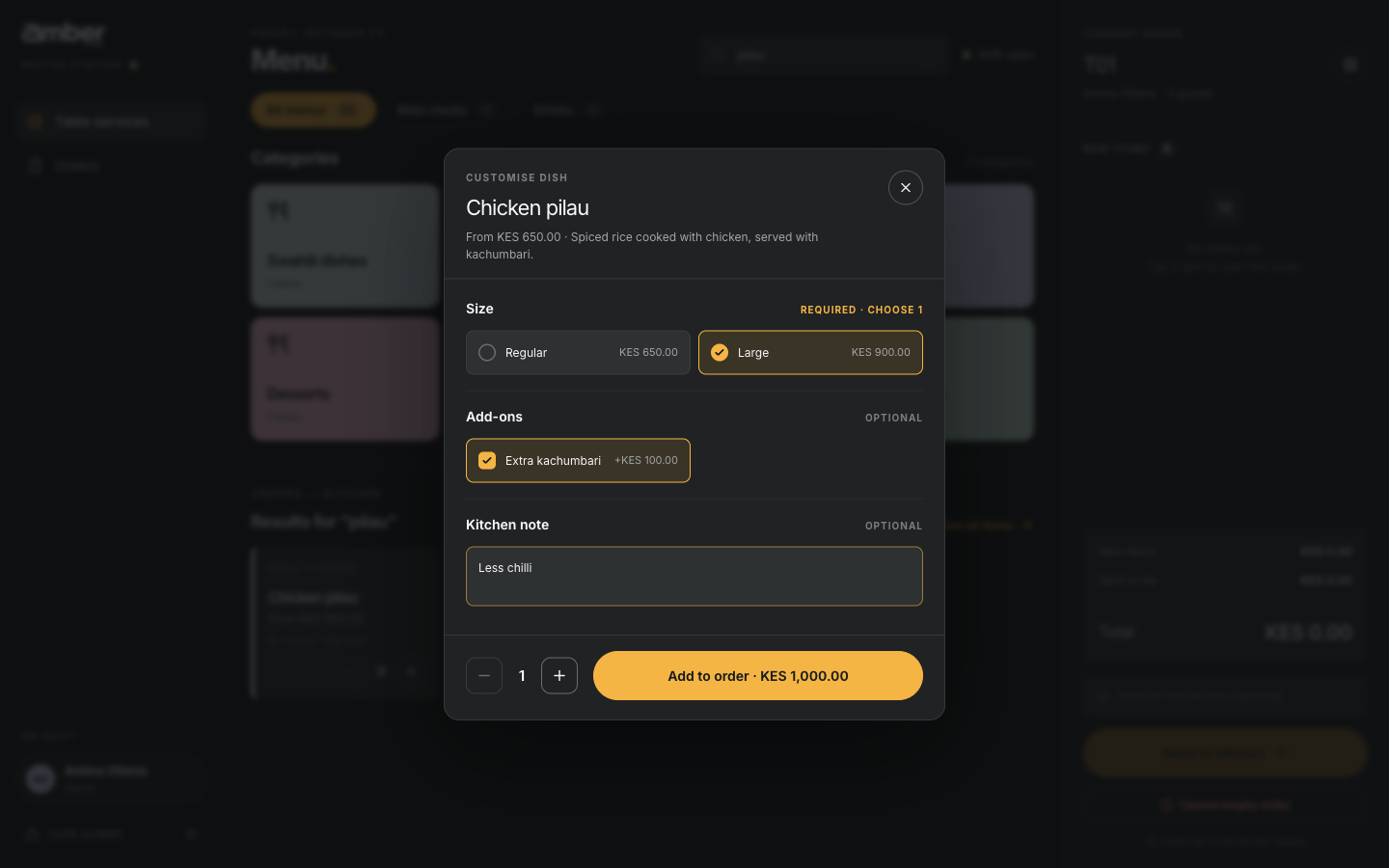
Chicken pilau options: Large, Extra kachumbari, note "Less chilli" The right side lists the New items, not sent yet, with the total.
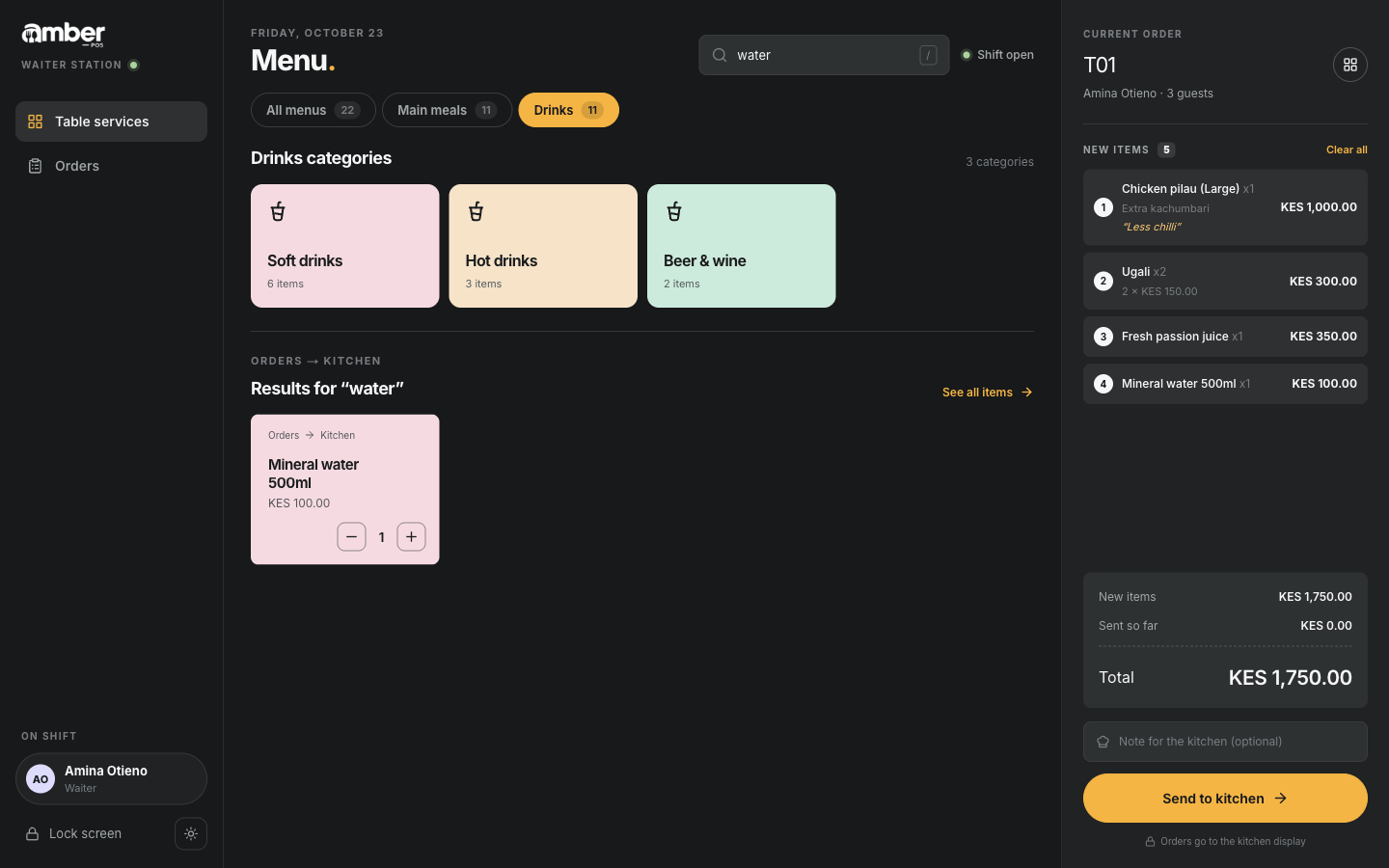
Four items ready to send, total KES 1,750 Optional: a Note for the kitchen about the whole table.
Send to kitchen. The items move under Sent so far, each marked Queued.
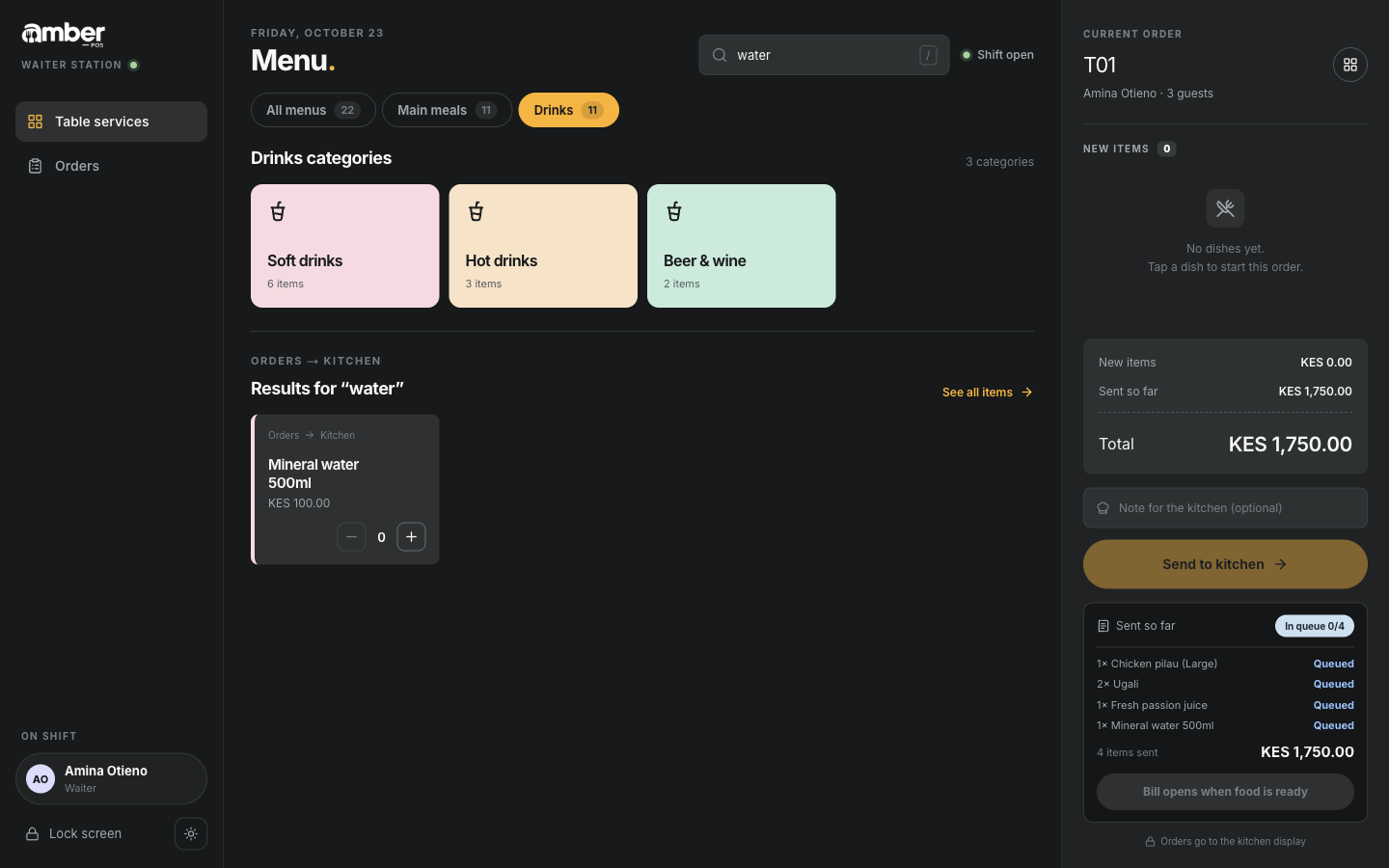
After sending: items marked Queued
To add more later (dessert, another drink), open the table again with Open order, add the items, and Send to kitchen again. Only the new items go to the kitchen.
4. Cook it (kitchen)
The kitchen screen has three columns: To cook, Preparing and Ready. Each table's order is one ticket, showing the table, waiter, guests, how long it has waited, notes and extras.
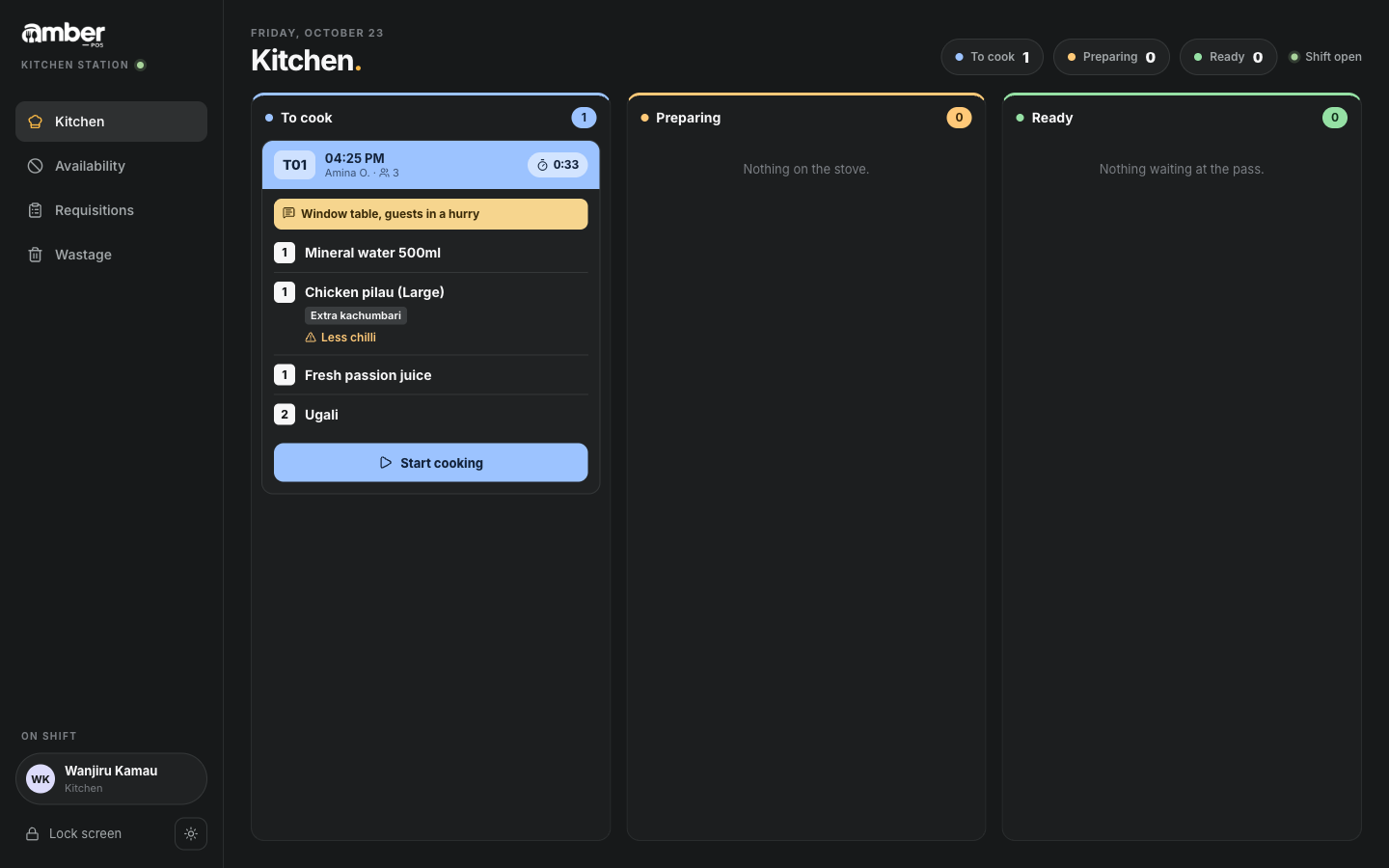
- Start cooking on the ticket, then pick how long it will take (5, 10, 15, 30, 45 or 60 min) or Start without estimate. The ticket moves to Preparing, and the waiter sees ~15 min.
- When the food is plated, Mark ready. The ticket moves to Ready and the waiter sees Ready.
- When it has left the pass, Complete clears the ticket.
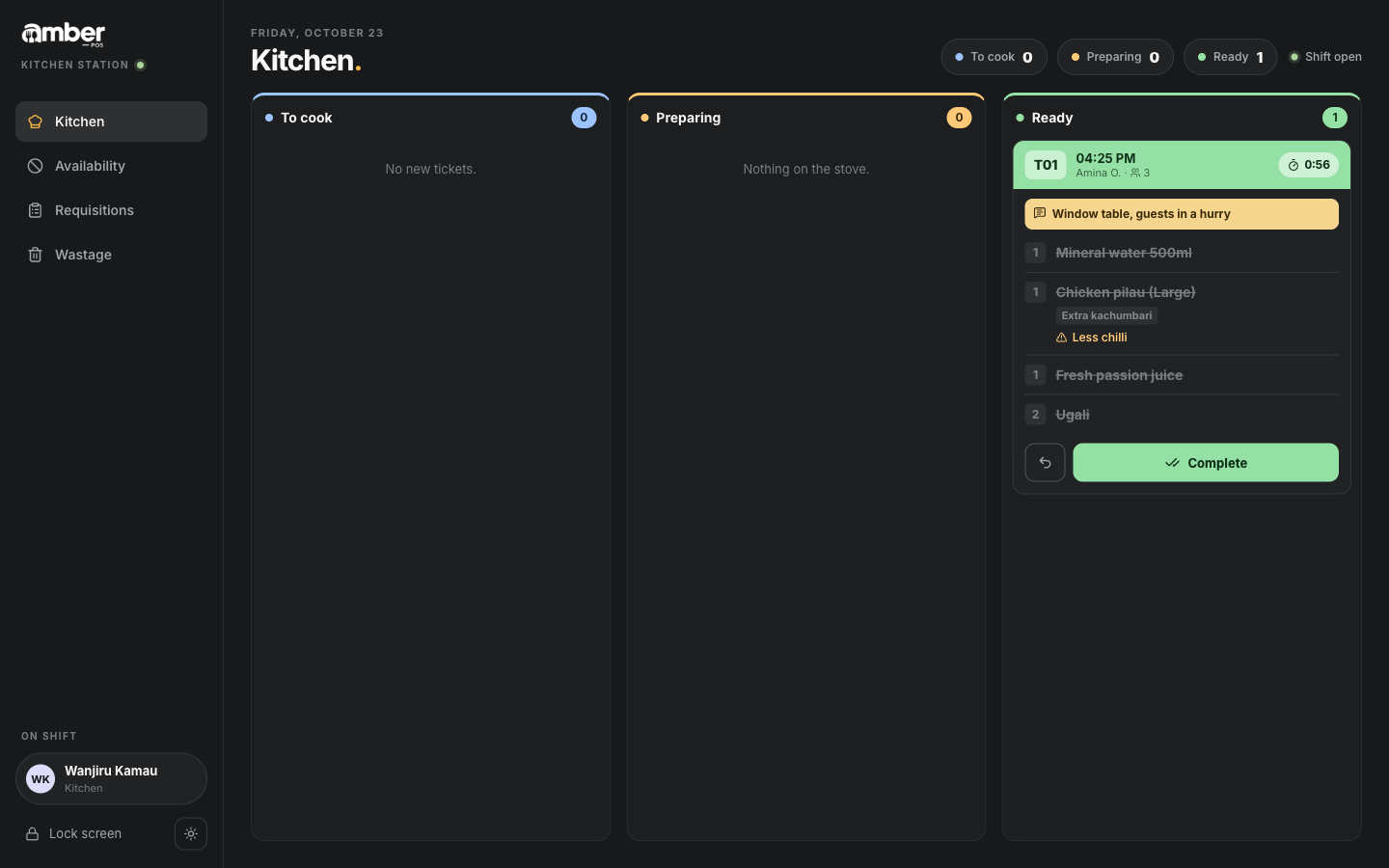
Tap one line on a ticket to mark only that item done. The arrow button moves a ticket back one column if you tapped by mistake.
5. Ask for the bill (waiter)
- Open the table: tap it on the floor, then Open order.
- Request bill. The button then says Bill requested · cashier will settle, and the table turns Ready to pay.
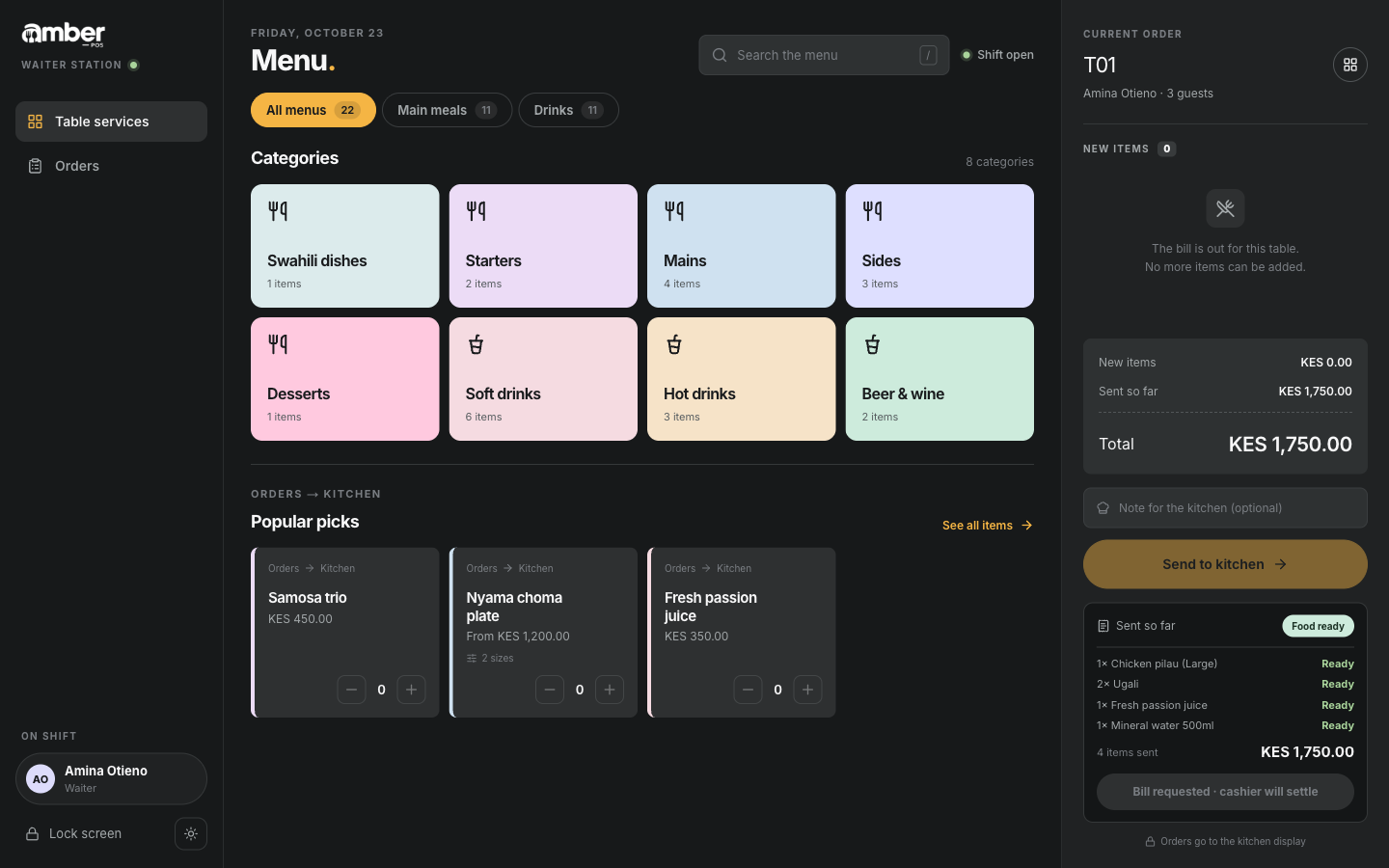
Request bill only works once nothing is waiting to be sent and the kitchen has the food ready. Until then it says Send new items before the bill or Bill opens when food is ready.
Once the bill is out, the order screen says The bill is out for this table. No more items can be added. So ask the guests if they want anything else before you request the bill.
6. Take payment (cashier)
Payments. Tables ready to pay are listed at the top. Tap the table.
Step 1: Print bill, and give it to the guests.
Step 2: How did they pay? Pick one:
Method Fill in Cash Cash tendered: what the guest gave. Amber shows the change M-Pesa M-Pesa transaction code from the confirmation SMS Card Charge the total on the card machine; optional Card reference Split cash + M-Pesa Cash amount, Cash tendered, M-Pesa amount and code. Cash + M-Pesa must equal the total 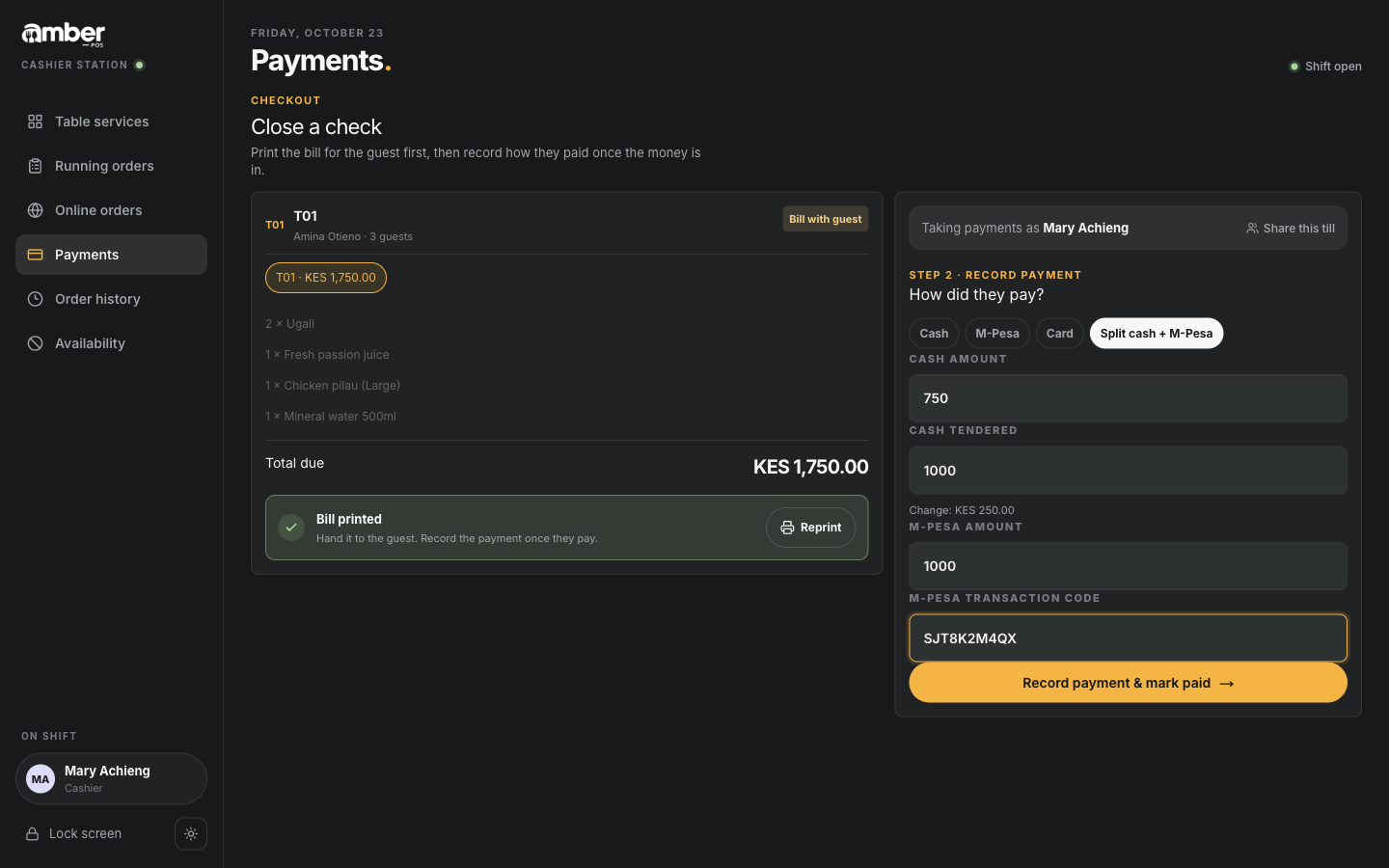
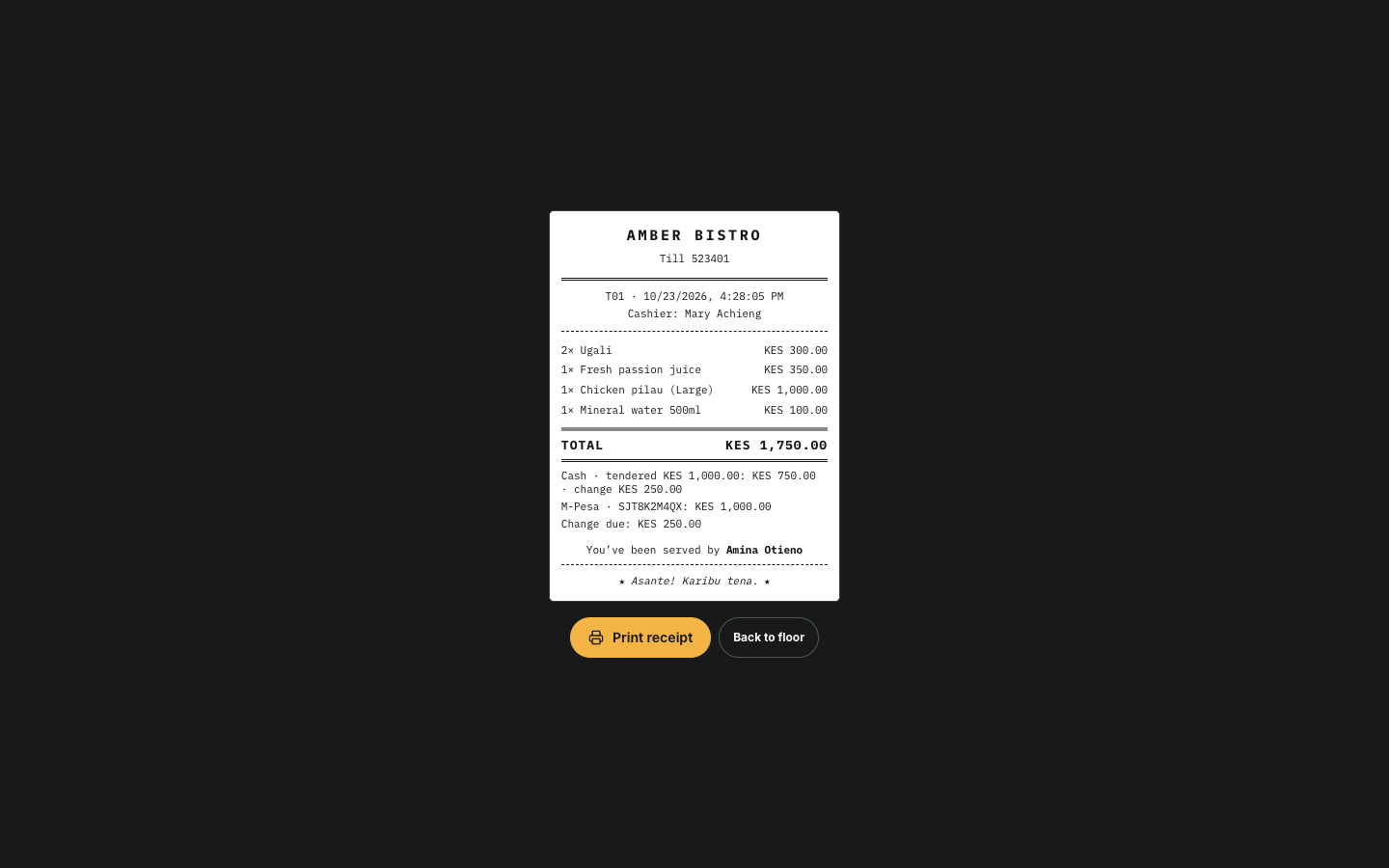
Split payment: KES 750 cash (KES 1,000 tendered) and KES 1,000 M-Pesa Record payment & mark paid. The receipt opens. Print receipt, then Back to floor. The table is Available again.
Worked example
Table T01, three guests, served by Amina Otieno:
| Item | Price |
|---|---|
| 1 × Chicken pilau, Large (900) + Extra kachumbari (100), note "Less chilli" | 1,000 |
| 2 × Ugali (150 each) | 300 |
| 1 × Fresh passion juice | 350 |
| 1 × Mineral water 500ml | 100 |
| Total | KES 1,750 |
Paid: KES 1,000 by M-Pesa (SJT8K2M4QX) and KES 750 cash. The guest gave KES 1,000 cash, so the change is KES 250.
When the order was sent to the kitchen, Amber also took stock out: the Chicken pilau's recipe (0.25 kg chicken, 0.2 kg rice and so on) and one bottle of Mineral water (chapter 07).
Variations
- Takeaway: Takeaway at the top of Table services opens an order without a table. It goes to the kitchen and cashier like a table order.
- Waiters taking payment: turn on Settings › Payments › Waiters can take payments. Waiters then get Checkout in their menu and can take payment without asking for the bill.
- Shared device: if several waiters signed in together (chapter 01), Amber asks who is serving each new table.
- Nothing ordered after all: Cancel empty order on the order screen frees the table.
Common problems
| What you see | Why | What to do |
|---|---|---|
| Bill opens when food is ready | The kitchen hasn't marked the food ready | Ask the kitchen to tap Mark ready |
| Send new items before the bill | Items are added but not sent | Send to kitchen, or remove them |
| A dish shows Not available today and can't be added | It was marked "86" or its stock ran out | Offer something else; see chapter 07 |
| Cash + M-Pesa must equal KES … | The two amounts don't add up to the total | Fix the amounts |
| Cash tendered is less than the cash amount. | The tendered amount is too small | Type what the guest actually gave |
| The table isn't in the cashier's list | The waiter hasn't requested the bill | The waiter taps Request bill |
Checklist
- A table was seated, ordered and sent to the kitchen
- The kitchen moved the ticket to Preparing and then Ready
- The waiter requested the bill and the table showed Ready to pay
- The cashier printed the bill, recorded the payment and printed the receipt
- The table is Available again