
 Guide
Guide
01 — Signing in and finding your way
1. How signing in works
Amber doesn't ask everyone for a username. You pick your role (Admin, Manager, Cashier, Waiter, Kitchen or Store) and type that role's 4-digit PIN. Everyone in the same role shares the PIN.
Welcome ─▶ pick your role ─▶ type the PIN ─▶ (pick your name, if the role has several people) ─▶ your home screen- If only one person has that role, Amber signs you in straight away.
- If several people share the role, for example three waiters, Amber asks Who's on shift? and you tick your name. Your name then goes on the orders and payments you handle.
- What you see after signing in depends on your role. A waiter sees tables and orders; the admin sees everything.
2. Sign in
Open Amber in the browser. The welcome screen shows the outlet's name. Tap Welcome.
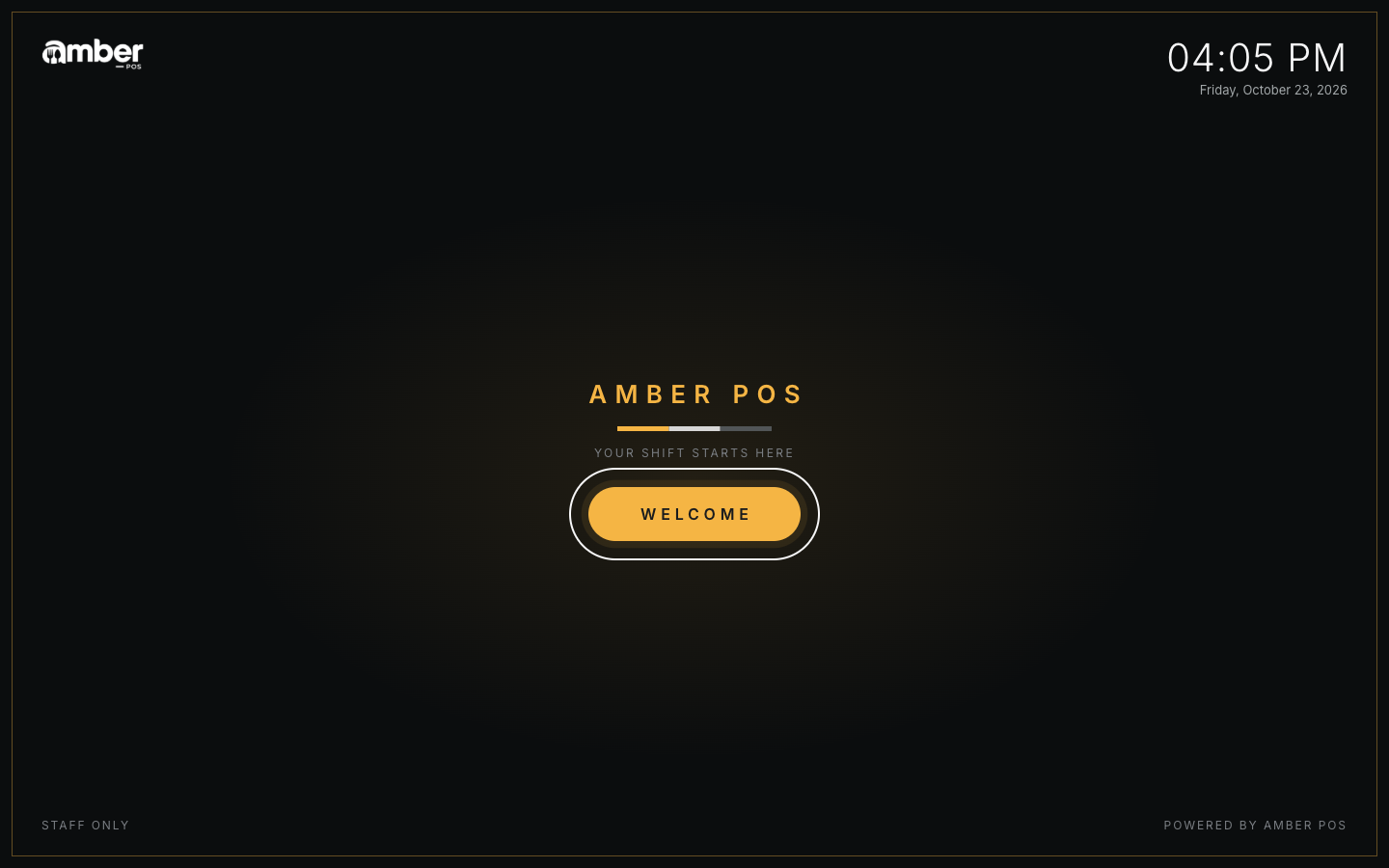
The welcome screen with the outlet name and a Welcome button Under Who's signing in?, tap your role.
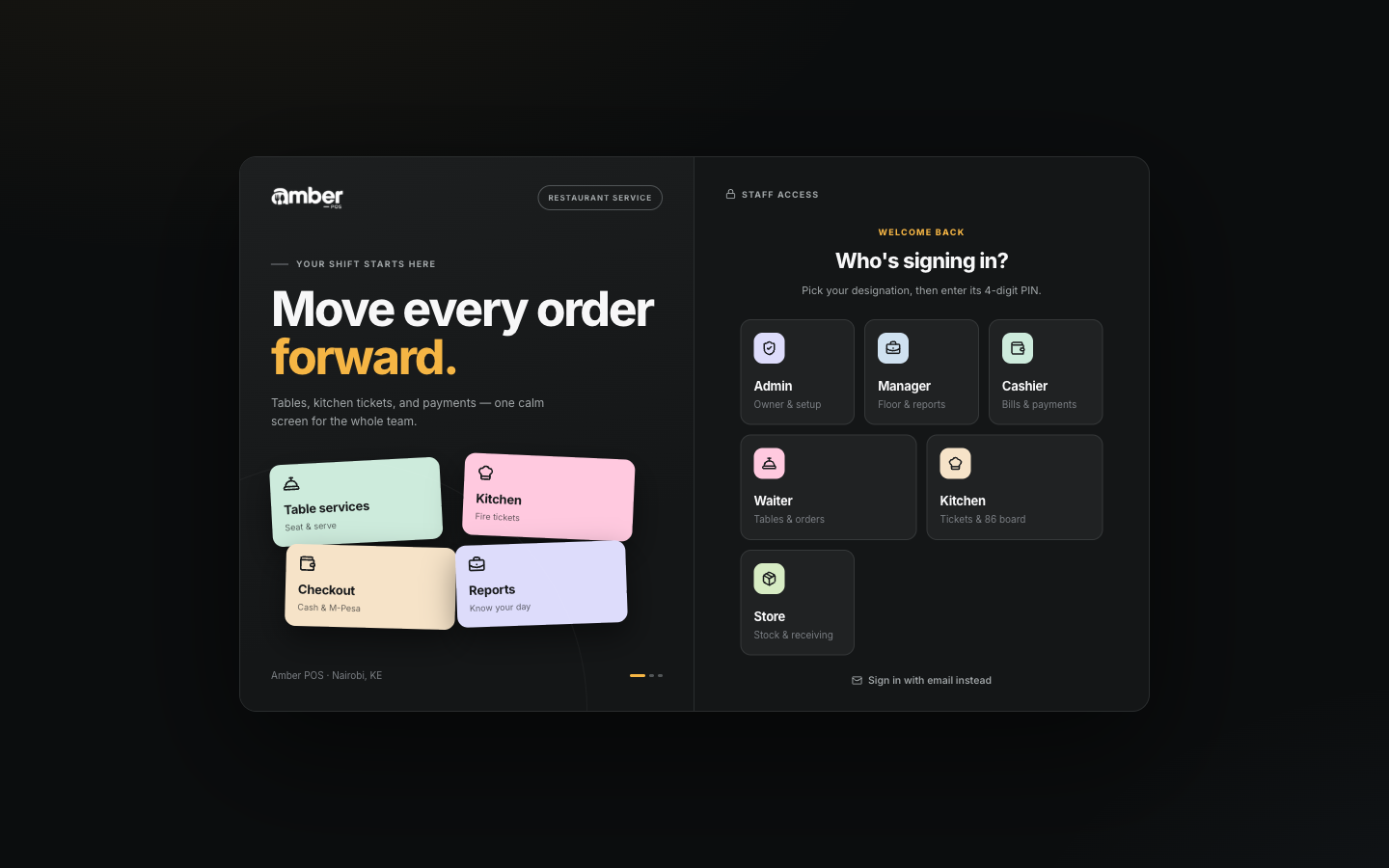
Six role cards: Admin, Manager, Cashier, Waiter, Kitchen and Store Type the 4-digit PIN on the keypad (or the keyboard). Amber signs in as soon as the fourth digit is in. A wrong PIN shakes the dots and says Incorrect PIN. Please try again.
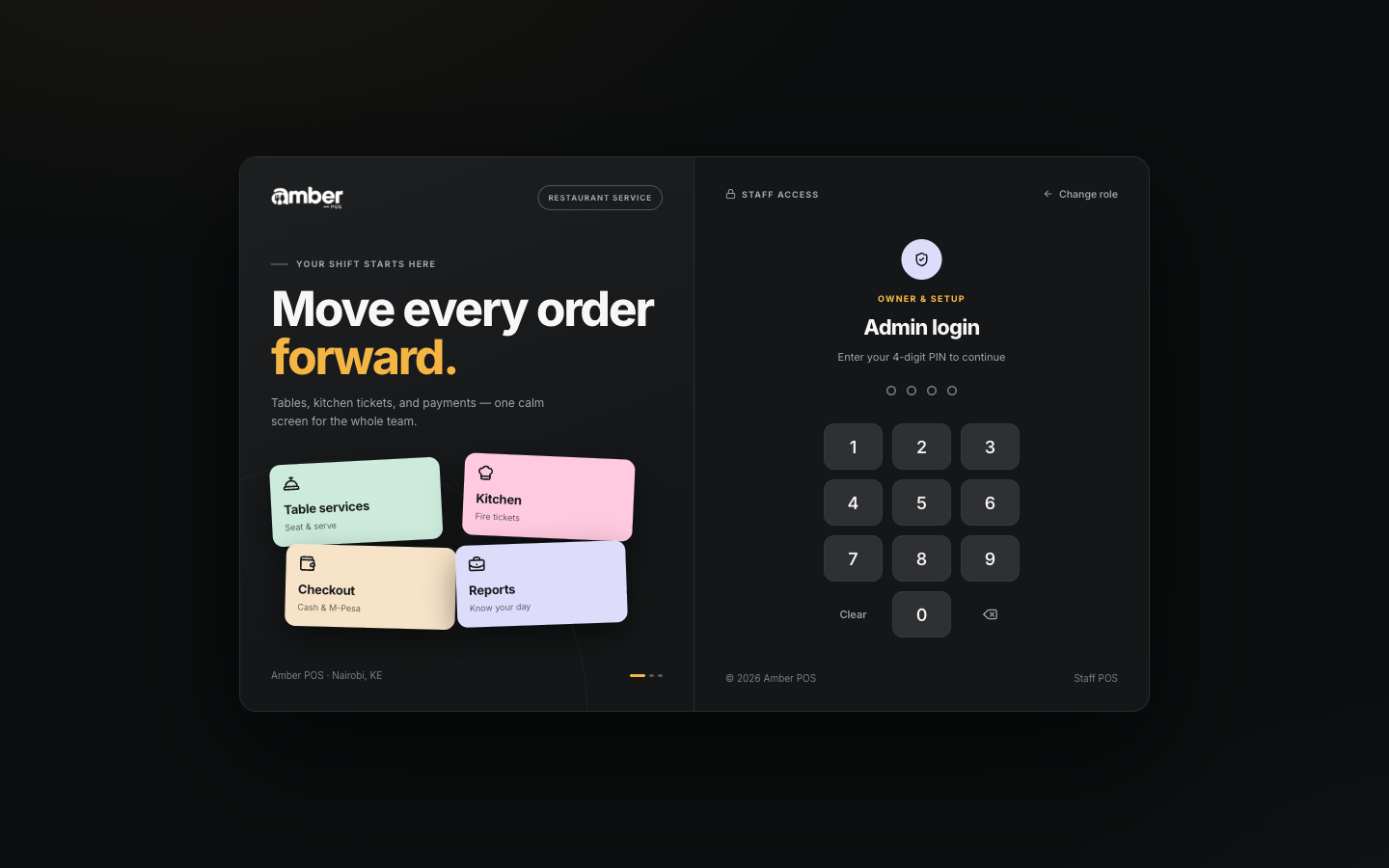
The PIN keypad for the Admin role If Amber asks Who's on shift?, tick your name, then tap Continue as your name.
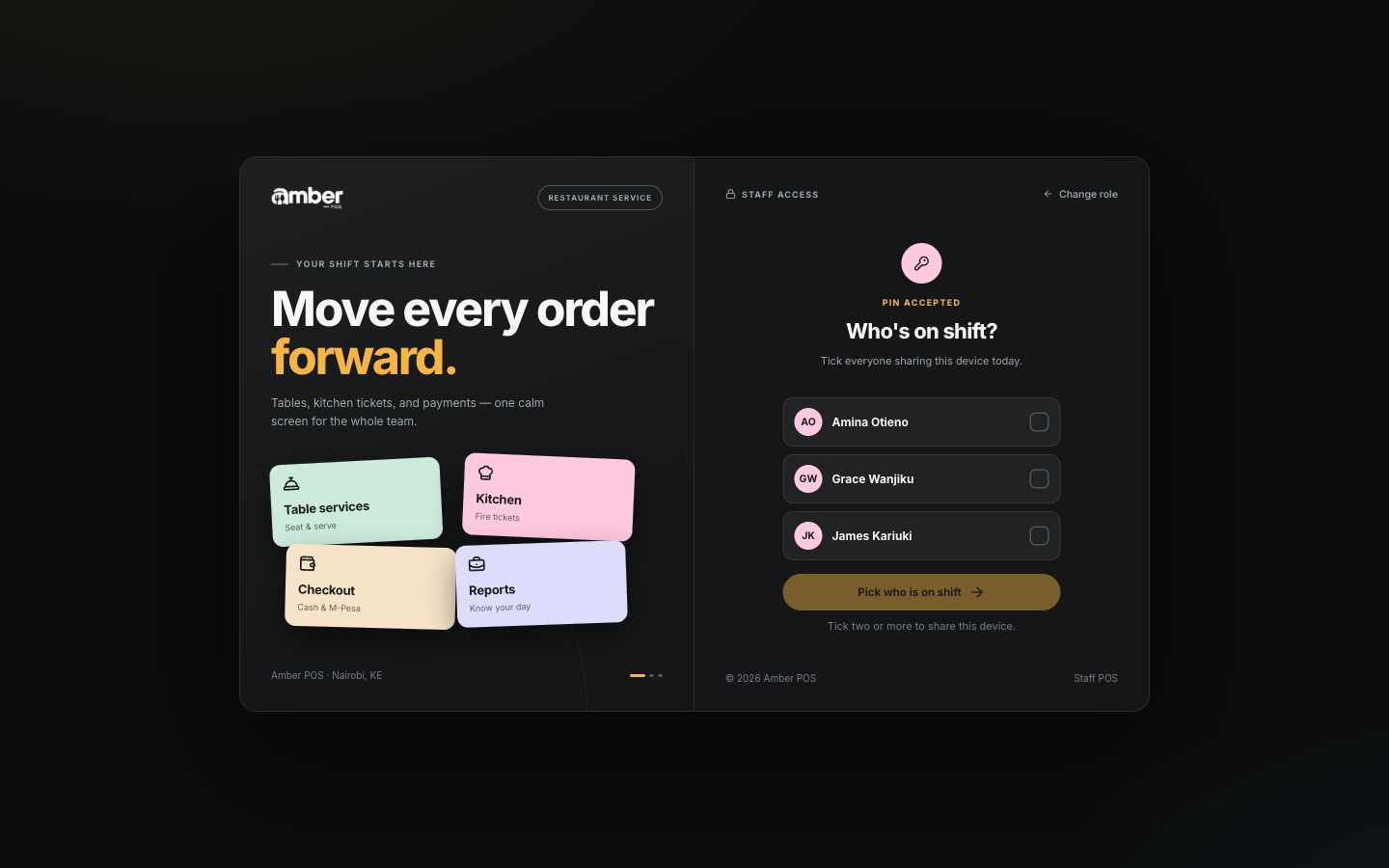
The Who's on shift screen with three waiters to choose from
3. Find your way around
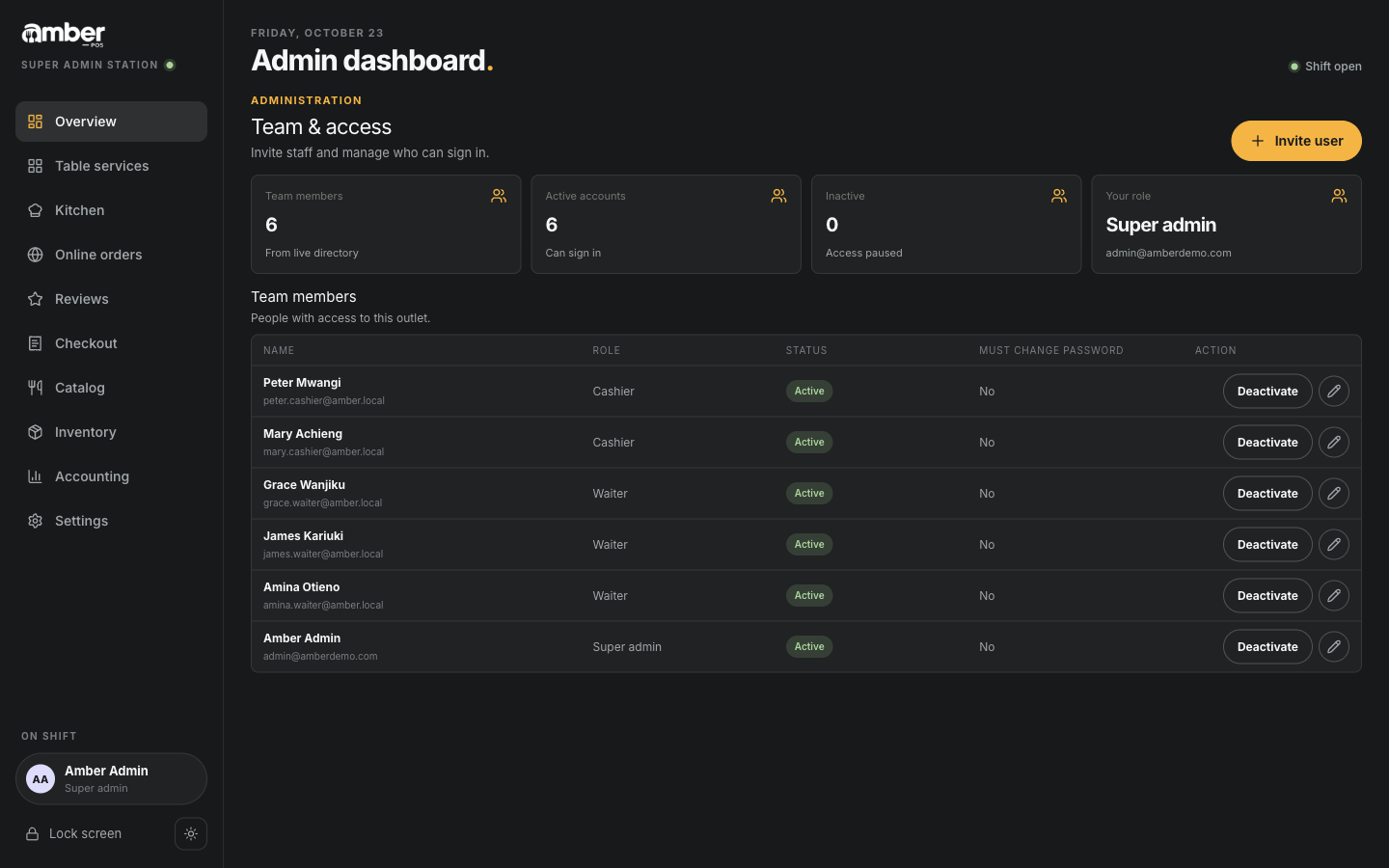
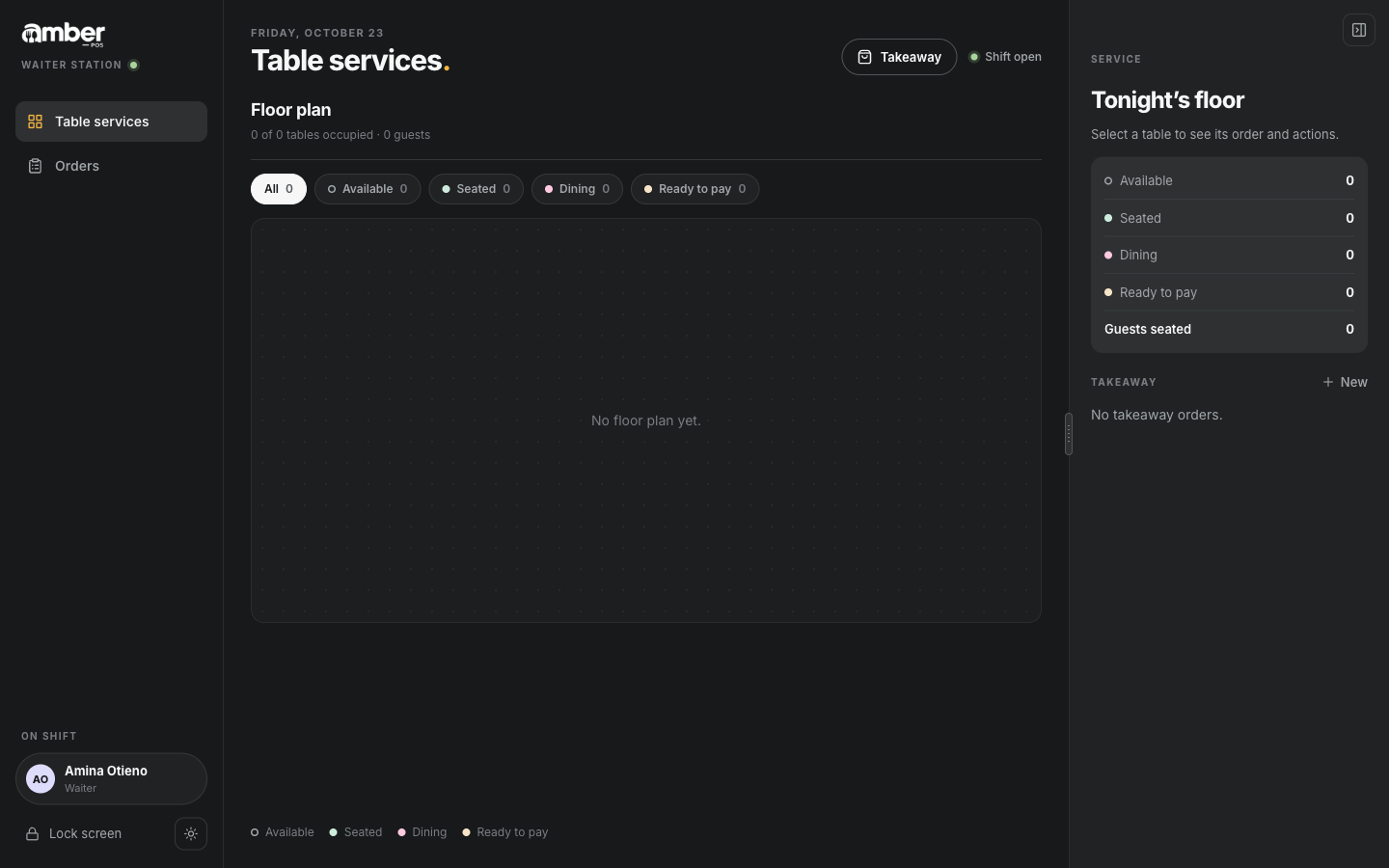
- The menu on the left lists the parts of Amber your role can use. The admin's menu is the longest; a waiter only has Table services and Orders.
- On shift, at the bottom of the menu, shows who is signed in and their role.
- The sun/moon button switches between the dark and light theme on this device.
| Role | Opens on | Menu |
|---|---|---|
| Admin | Admin dashboard (team and access) | Overview, Table services, Kitchen, Online orders, Reviews, Checkout, Catalog, Inventory, Accounting, Settings |
| Manager | Manager dashboard | Same as Admin; some settings are admin-only |
| Cashier | Table services | Table services, Running orders, Online orders, Payments, Order history, Availability |
| Waiter | Table services | Table services, Orders (and Checkout if waiters may take payments) |
| Kitchen | Kitchen board | Kitchen, Availability, Requisitions, Wastage |
| Store | Stock overview | Overview, Items, Requisitions, Purchasing, Receiving, Stock moves, Reports |
4. Lock the screen
When you leave the device, tap Lock screen at the bottom of the menu. Amber goes back to the welcome screen and the next person signs in with their own role. Always lock the screen at the end of your shift, so nobody else works under your name.
5. Sign in with email instead
People can also sign in with an email and password, for example the owner setting up a new outlet. On the role screen tap Sign in with email instead. A role without a PIN shows PIN not set · use email and goes to the email sign-in directly.
New staff get an email with a temporary password and choose their own the first time they sign in by email (chapter 02).
Common problems
| What you see | Why | What to do |
|---|---|---|
| Incorrect PIN. Please try again. | Wrong PIN for that role | Check you picked the right role. Ask a manager for the PIN |
| ThrottlerException: Too Many Requests | Too many PIN tries on this device in one minute | Wait one minute, then try again |
| No active staff have this role yet. | Nobody has been added with this role | The admin adds the person (chapter 02) |
| Your name is missing from Who's on shift? | Your account is not active, or has another role | Ask the admin to check Settings › Users |
Checklist
- You signed in as Admin with PIN 1234 and saw the Admin dashboard
- You signed in as a waiter, picked Amina Otieno, and saw only Table services and Orders
- Lock screen took you back to the welcome screen