
 Guide
Guide
04 — Setting up stock
For the admin or the storekeeper (a manager is needed for suppliers).
1. How stock works
Supplier ──delivers──▶ Stock item (Chicken, kg) ──kept in──▶ Store (Main store / Kitchen / Bar)
                              ▲
                              │ recipe: 0.25 kg per plate
Waiter sells ──▶ Menu item (Chicken pilau) ──▶ 0.25 kg leaves stock by itself- A stock item is anything you buy: rice, chicken, cooking oil, charcoal. It has a stock unit, the unit you count in (kg, litre, piece).
- A store is a place stock is kept. Amber starts with Main store, Kitchen and Bar.
- A supplier is who you buy from. Amber keeps what you owe each one.
- A recipe says how much of each stock item one dish uses. Every sale then takes the right amounts out of stock, and Amber can work out the cost and profit of each dish.
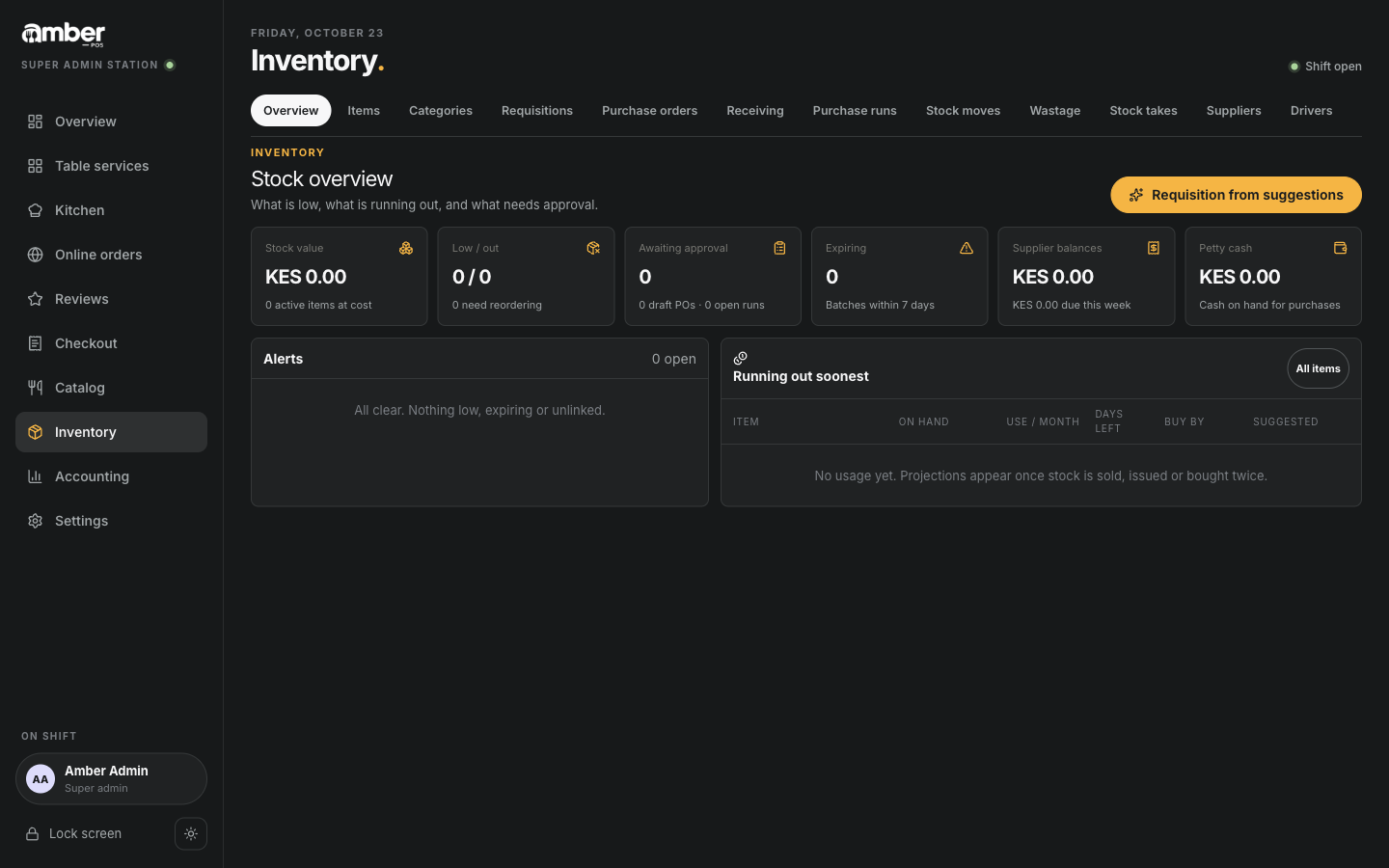
The Inventory section has a tab for each part. The tab bar scrolls sideways: Brands & stores, Payables, Petty cash and Reports are past the right edge on most screens.
2. Before you start
- Stock categories exist already: Produce, Dry goods, Spices & sauces, Oils & fats, Dairy & eggs, Meat & fish, Soft drinks, Beer, Wine, Spirits, Gas & fuel, Cleaning, Packaging, Empties. Add or rename them under Inventory › Categories.
- Your dishes are in the Catalog (chapter 03).
3. Add suppliers
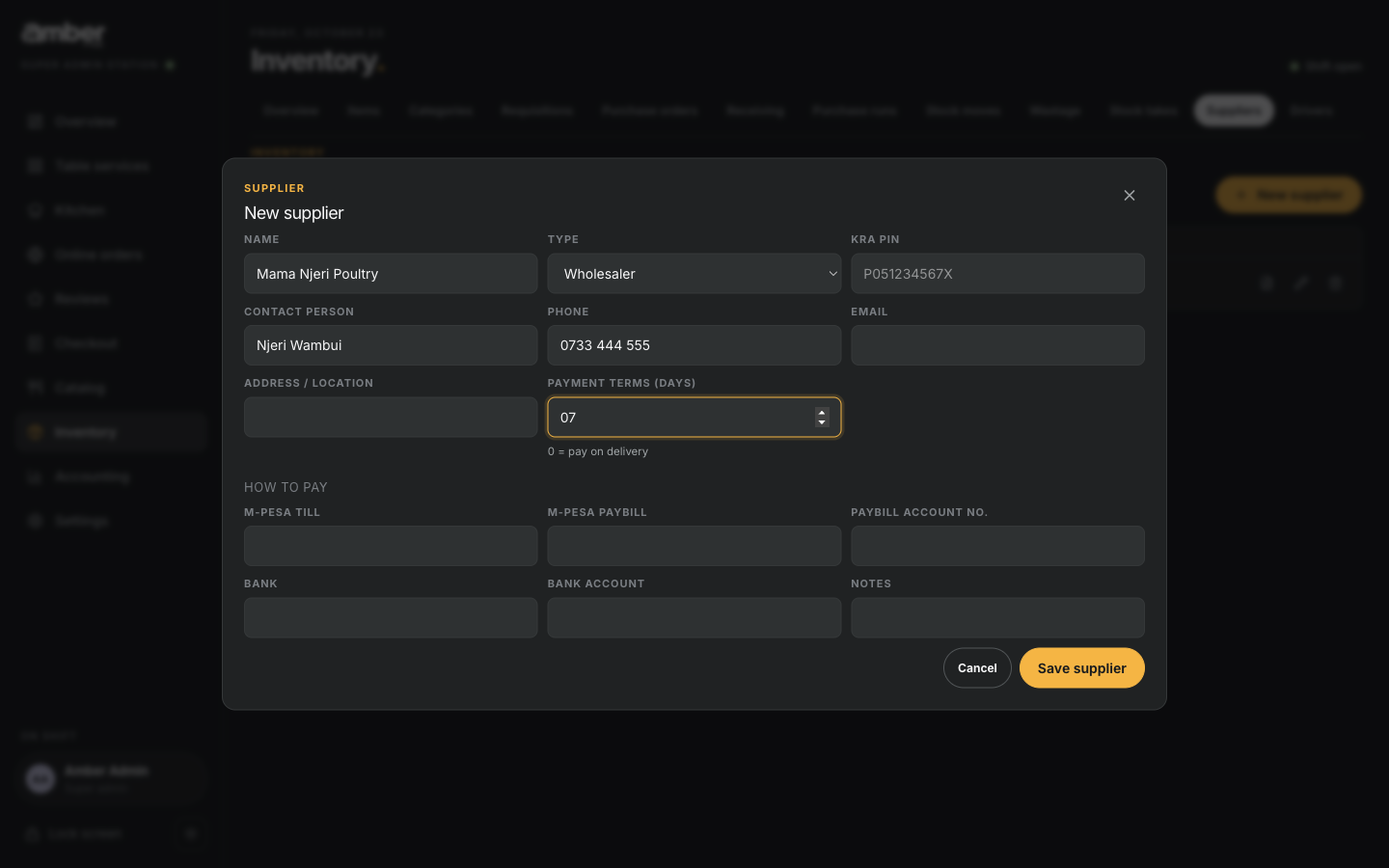
- Inventory › Suppliers › New supplier.
- Fill in Name, Contact person and Phone.
- Payment terms (days): how long you have to pay.
0means pay on delivery;7means within a week. Amber uses this to work out when each bill is due. - Under How to pay: the supplier's M-Pesa till, paybill or bank details, so whoever pays them has the numbers.
- Save supplier.
4. Add stock items from a spreadsheet
The quickest way to add many items at once.
Inventory › Items › Template downloads an empty sheet with the right columns.
Fill it in, one row per item, in Excel or Google Sheets. Save it as CSV (Excel: File › Save As › CSV UTF-8).
Import › Choose CSV file, then pick your file.
Amber checks every row and shows a preview. Nothing is saved yet.
Result Meaning Ready Will be created Already exists An item with that name exists; it is skipped Needs fixing Something is wrong; the message says what 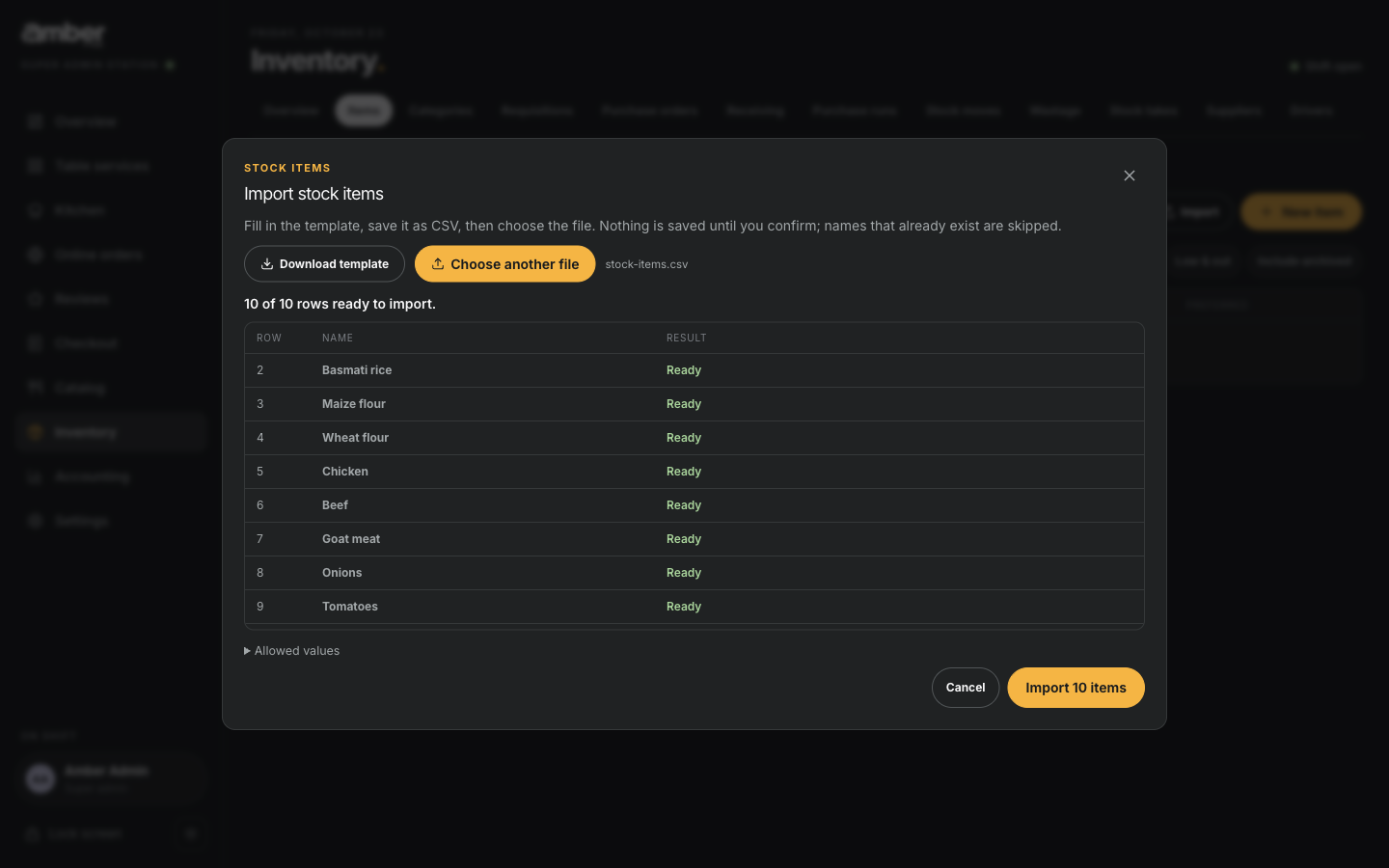
Import preview: 10 of 10 rows ready to import Import 10 items. You see 10 items created. Then Close.
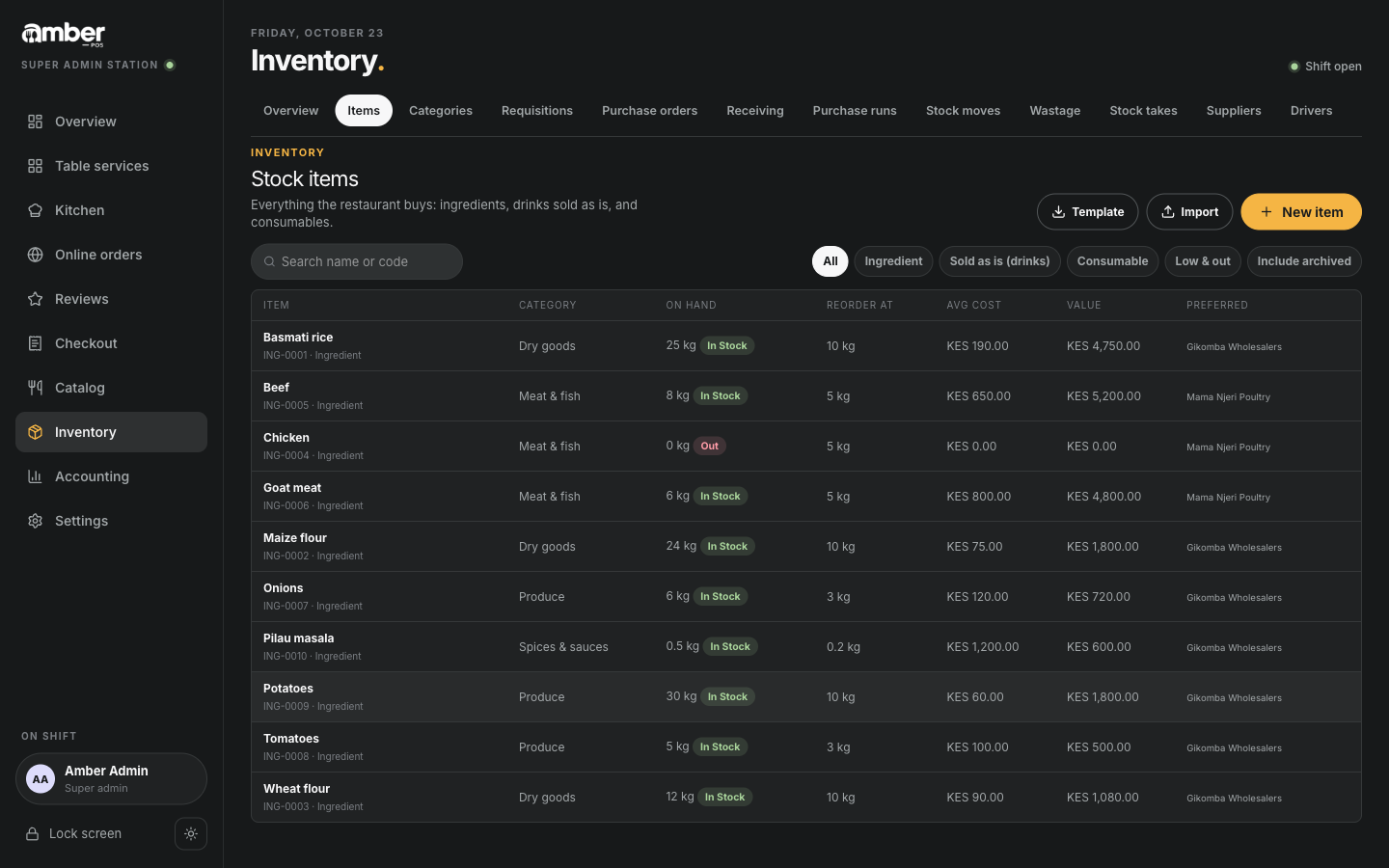
The demo sheet is tools/demo-data/stock-items.csv. Open Allowed values in the import window to see the units, categories, stores and suppliers you can use in the sheet.
5. Add a stock item by hand
- Inventory › Items › New item.
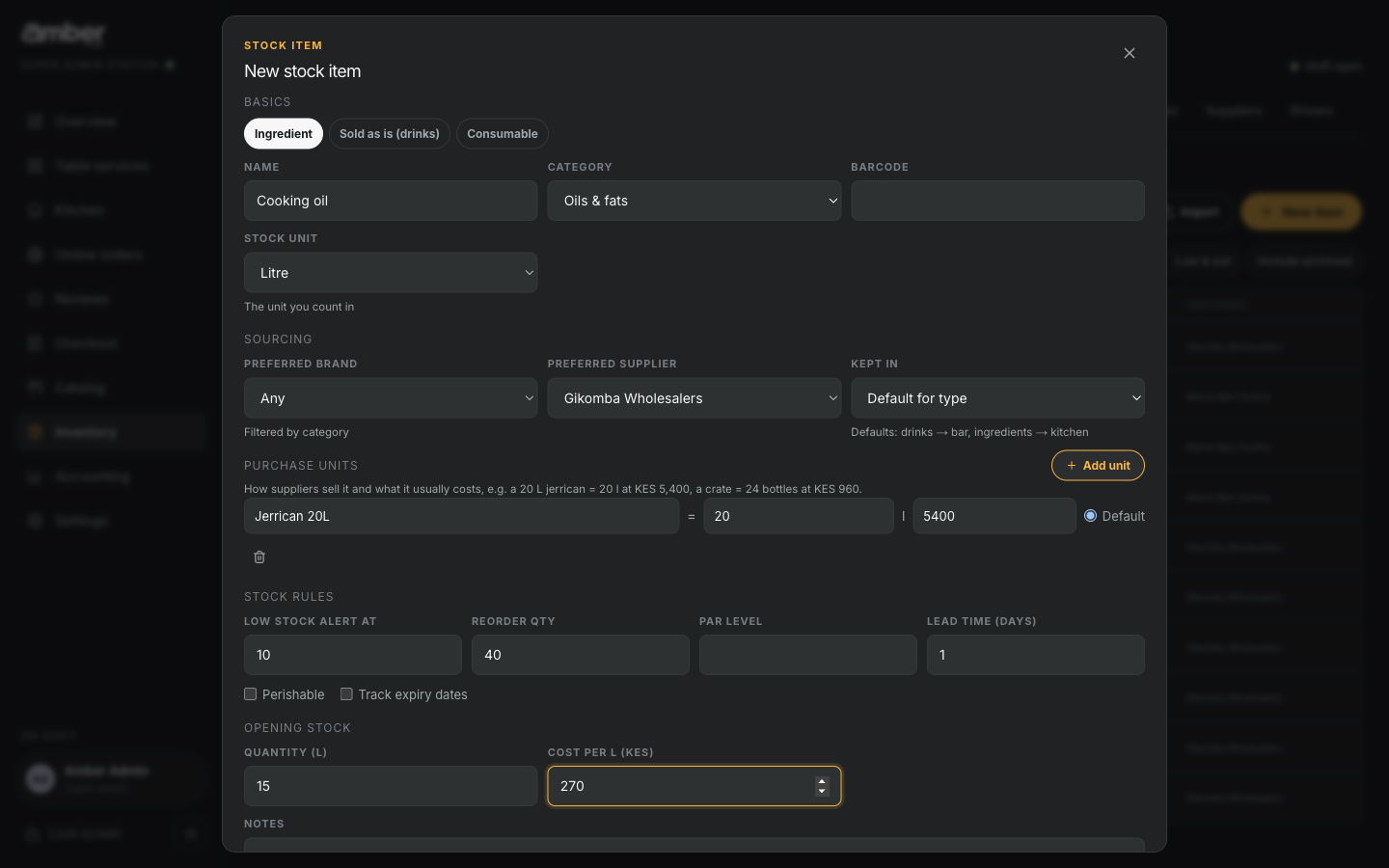
- Basics: Name, Category and Stock unit (the unit you count in).
- Sourcing: Preferred supplier, and where it is Kept in.
- Purchase units: how the supplier sells it. Add unit, then for example Jerrican 20L =
20litres, price5400. When you order, you can then order "2 jerricans" instead of "40 litres". - Stock rules:
- Low stock alert at: Amber warns you when stock falls to this.
- Reorder qty: how much to order when it is low.
- Opening stock: what you have now and what it cost per unit.
- Create item. The item's page opens.
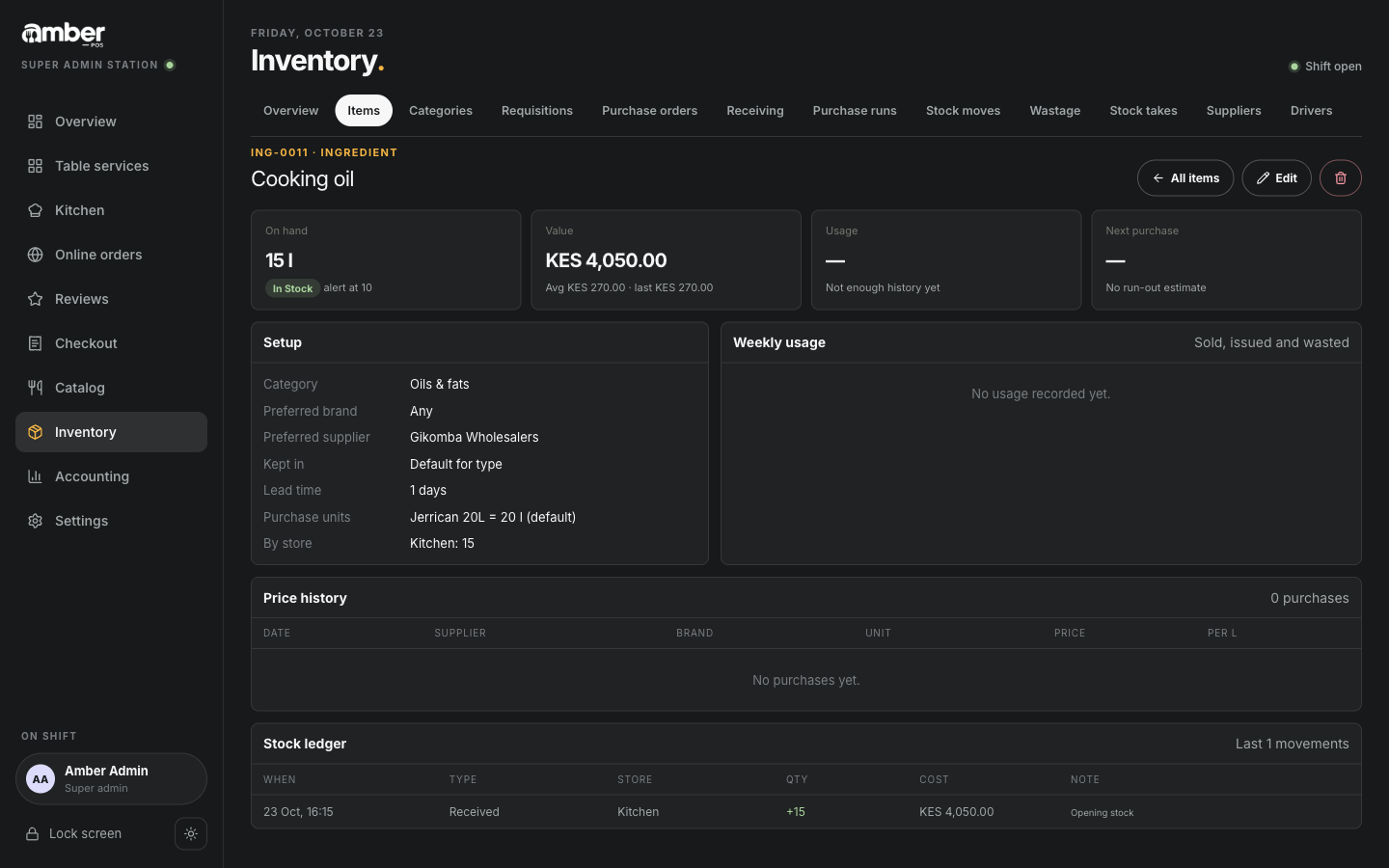
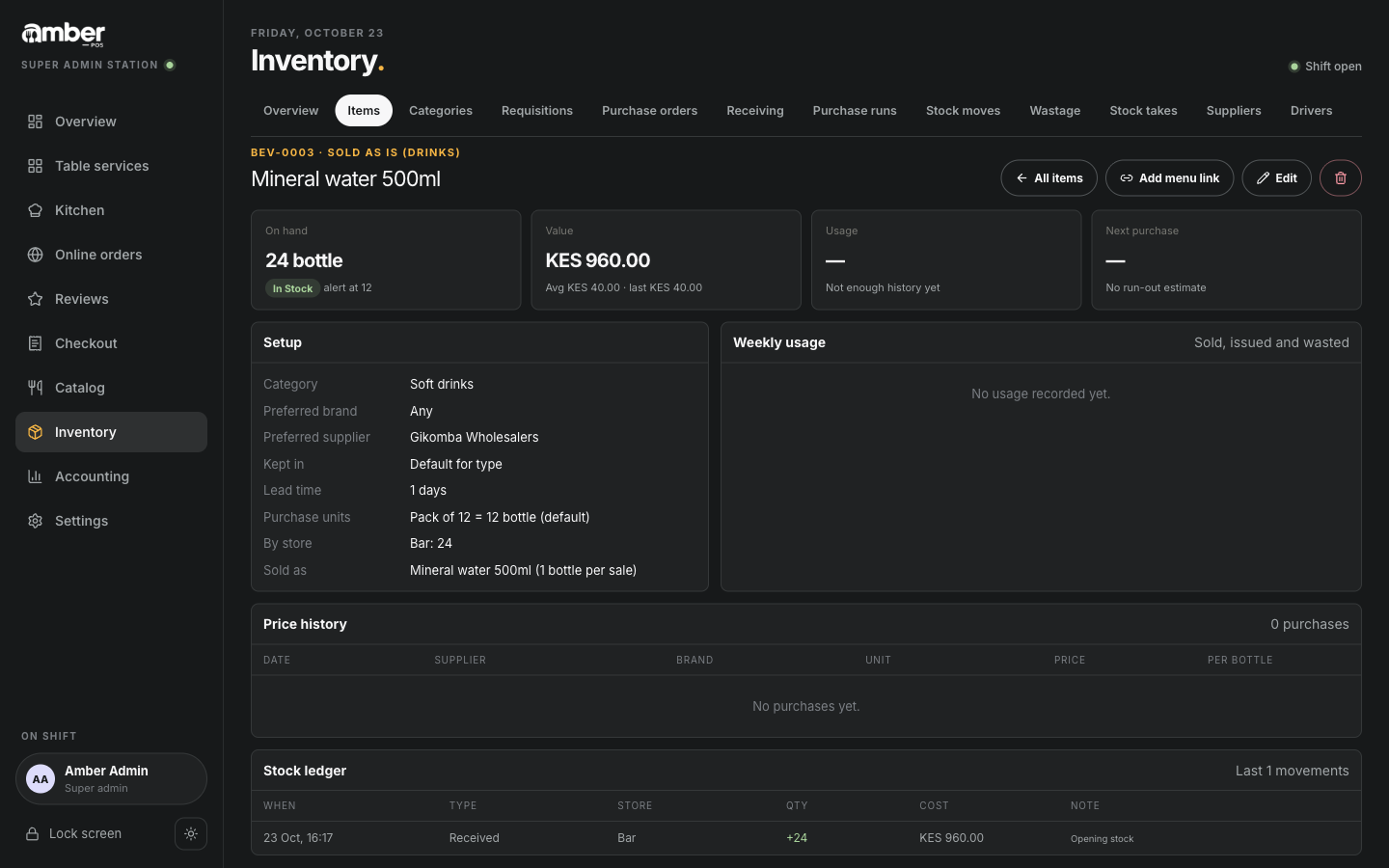
The item page shows what is On hand, its Value, monthly Usage, when to buy next, the price history and every stock movement.
6. Add drinks you sell as they come (soda, water, beer)
A soda or a bottle of water is bought and sold as it is: one bottle in, one bottle out. Give it the type Sold as is (drinks) and link it to its menu item; each sale then takes one bottle out of stock. Drinks are kept in the Bar store unless you choose another.
At the top of New item, the Type chips are Ingredient (cooked with), Sold as is (drinks) and Consumable (used up, never sold: napkins, gas, cleaning). Choosing Sold as is (drinks) sets the stock unit to Bottle and shows two more choices: One size or Several sizes (300ml, 500ml, 1L…).
A drink in several sizes: Coca-Cola 300ml and 500ml
- Inventory › Items › New item, Sold as is (drinks), Several sizes (300ml, 500ml, 1L…).
- Product name
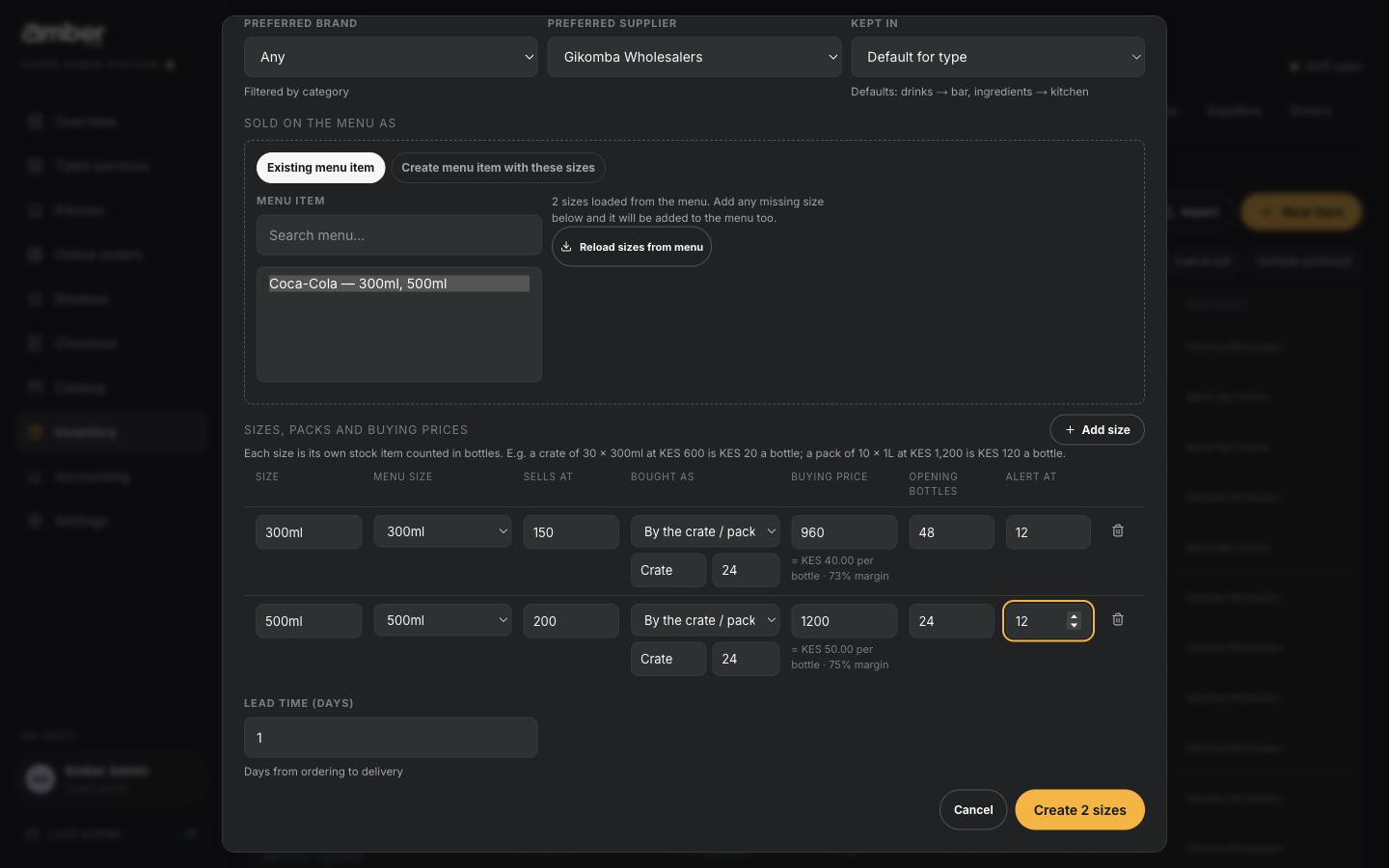
Coca-Cola, Category Soft drinks, Preferred supplier. - Sold on the menu as: keep Existing menu item and pick Coca-Cola — 300ml, 500ml from the list. Its sizes and prices load from the menu. (Or Create menu item with these sizes if it isn't on the menu yet.)
- For each size row:
- Bought as: By the crate / pack, with the pack name (Crate) and how many bottles are in
it (
24). Or Single bottles. - Buying price: the price of one crate. Amber shows the cost per bottle and the margin, e.g. = KES 40.00 per bottle · 73% margin.
- Opening bottles: how many you have now. Alert at: when to warn you.
- Bought as: By the crate / pack, with the pack name (Crate) and how many bottles are in
it (
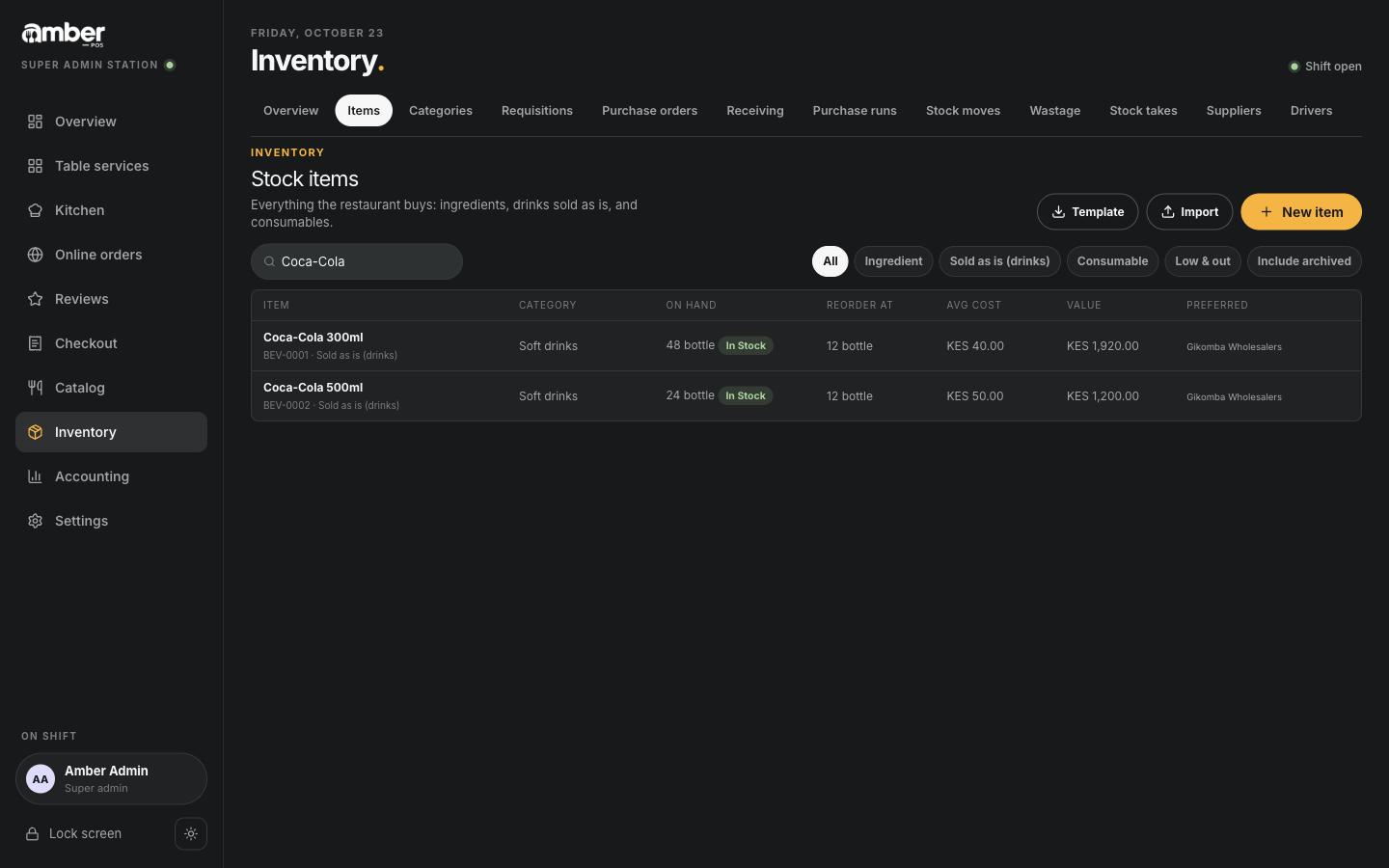
- Create 2 sizes. Amber makes one stock item per size, Coca-Cola 300ml and Coca-Cola 500ml, each linked to its size on the menu.
A drink in one size: Mineral water 500ml
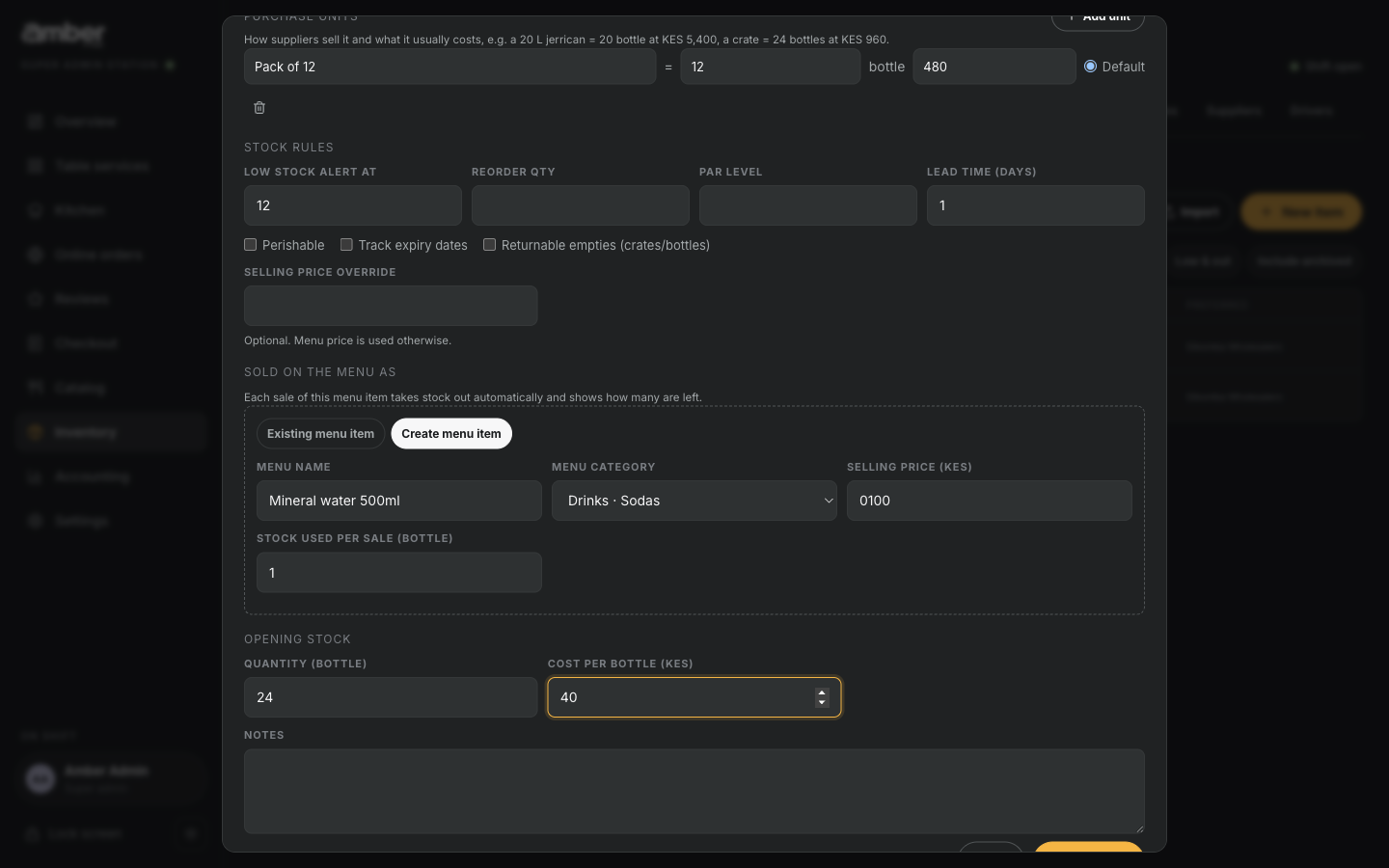
- New item, Sold as is (drinks), keep One size.
- Name
Mineral water 500ml, Category Soft drinks, Stock unit Bottle. - Purchase units: Add unit,
Pack of 12=12bottles at480. - Sold on the menu as:
- Existing menu item if the menu already has it, then pick it; or
- Create menu item, pick the Menu category (Drinks · Sodas) and the Selling price
(
100). - Stock used per sale:
1bottle.
- Opening stock:
24bottles at40each. Create item.
The item page shows Sold as: Mineral water 500ml (1 bottle per sale), and the dish appears on the waiters' menu with how many are left.
Returnable crates and bottles (Empties) are also Sold as is items: tick Returnable empties (crates/bottles) and set a Deposit value.
7. Link dishes to stock with a recipe
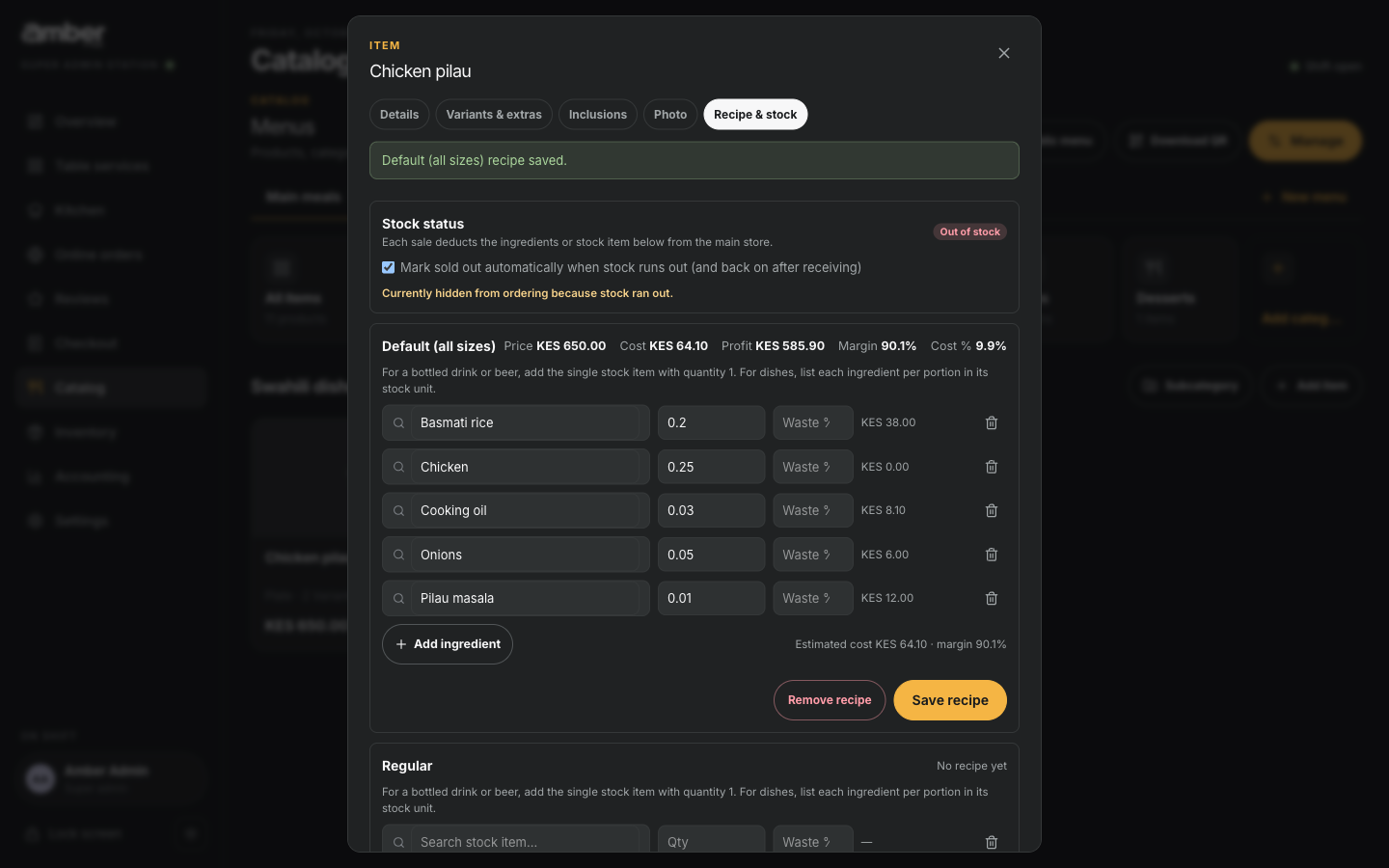
- Catalog, open the dish (Chicken pilau), then the Recipe & stock tab.
- In the Default (all sizes) card, pick a stock item and type how much one portion uses, in that item's stock unit. Add ingredient for the next one.
- Optional: Waste % for trimming or loss while cooking.
- As you type, Amber shows the Estimated cost per plate and the margin.
- Save recipe. The card now shows Price, Cost, Profit, Margin and Cost %.
- A dish with sizes has a card per size (Regular, Large). Fill in a size's own card if it uses different amounts; otherwise the Default recipe is used.
- Drinks added as Sold as is (section 6) are linked already and need no recipe.
- Mark sold out automatically when stock runs out (ticked by default) hides the dish from waiters when an ingredient runs out, and brings it back when stock is received.
Worked example
Chicken pilau, one plate:
| Ingredient | Per plate | Cost per unit | Cost |
|---|---|---|---|
| Basmati rice | 0.2 kg | KES 190 / kg | 38.00 |
| Chicken | 0.25 kg | KES 0 (none bought yet) | 0.00 |
| Cooking oil | 0.03 L | KES 270 / L | 8.10 |
| Onions | 0.05 kg | KES 120 / kg | 6.00 |
| Pilau masala | 0.01 kg | KES 1,200 / kg | 12.00 |
| Total | KES 64.10 |
Price KES 650, so profit KES 585.90 and margin 90.1%. The margin is too high because chicken has no cost yet; it becomes right after the first delivery in chapter 05.
Because the demo has 0 kg of chicken, the Stock status box says Out of stock and Currently hidden from ordering because stock ran out. Waiters can't sell Chicken pilau until chicken is bought.
Common problems
| What you see | Why | What to do |
|---|---|---|
| A dish suddenly shows Not available today | One of its ingredients is at zero and Mark sold out automatically is on | Receive stock (chapter 05), or correct the count |
| N drinks are not linked to a menu item, so sales won't reduce stock | A drink is in stock but has no menu link | Show them, then link each to its menu item |
| Import row Needs fixing | A unit, category, store or supplier name doesn't match | Open Allowed values and use one of those names |
| Profit looks too high | Some ingredients have no cost yet, or dishes have no recipe | Receive stock with prices; add recipes to every dish |
| A drink was saved as an Ingredient | The type was left at Ingredient | Open the item, Edit, choose Sold as is (drinks), save, then Add menu link |
Checklist
- Every supplier you buy from is in Suppliers, with payment terms and how to pay them
- Every stock item is in Items, with the right stock unit and opening stock
- Every drink you sell as it comes is Sold as is (drinks) and linked to its menu item (no not linked to menu warning)
- Low stock alerts are set for items you must not run out of
- Every dish has a recipe, and its cost and margin look right