
 Guide
Guide
05 — Buying stock
For the storekeeper, who orders and receives, and a manager or the admin, who approves and pays.
1. How buying works
Storekeeper        │ Manager / Admin          │ Storekeeper            │ Manager / Admin
───────────────────┼──────────────────────────┼────────────────────────┼─────────────────────────
1. Purchase order  │ 2. Approve, send to      │ 3. Receive the delivery│ 4. Record the supplier's
(Draft) │ supplier (Sent) │ (stock goes up) │ invoice, then pay it| Step | Who | Where | Result |
|---|---|---|---|
| Order | Storekeeper | Purchasing › New purchase order | Order in Draft |
| Approve | Manager or admin | Inventory › Purchase orders, open it, Approve | Approved |
| Send | Manager or admin | Send on WhatsApp or Download PDF, then Mark sent | Sent |
| Receive | Storekeeper | Receiving, tap the expected delivery | Goods received note (GRN); stock goes up; order Partial or Received |
| Invoice | Manager or admin | Inventory › Payables › Record invoice | Bill owed to the supplier, with a due date |
| Pay | Manager or admin | Pay on the invoice | Bill paid; payment in the cashbook |
A storekeeper can't approve their own order. That's on purpose: someone else checks what is bought and at what price.
2. Before you start
- The supplier exists, with payment terms (chapter 04).
- The items exist, ideally with a Preferred supplier, Low stock alert at and Reorder qty.
3. Raise a purchase order (storekeeper)
Sign in as Store. The Stock overview shows what is low or out.
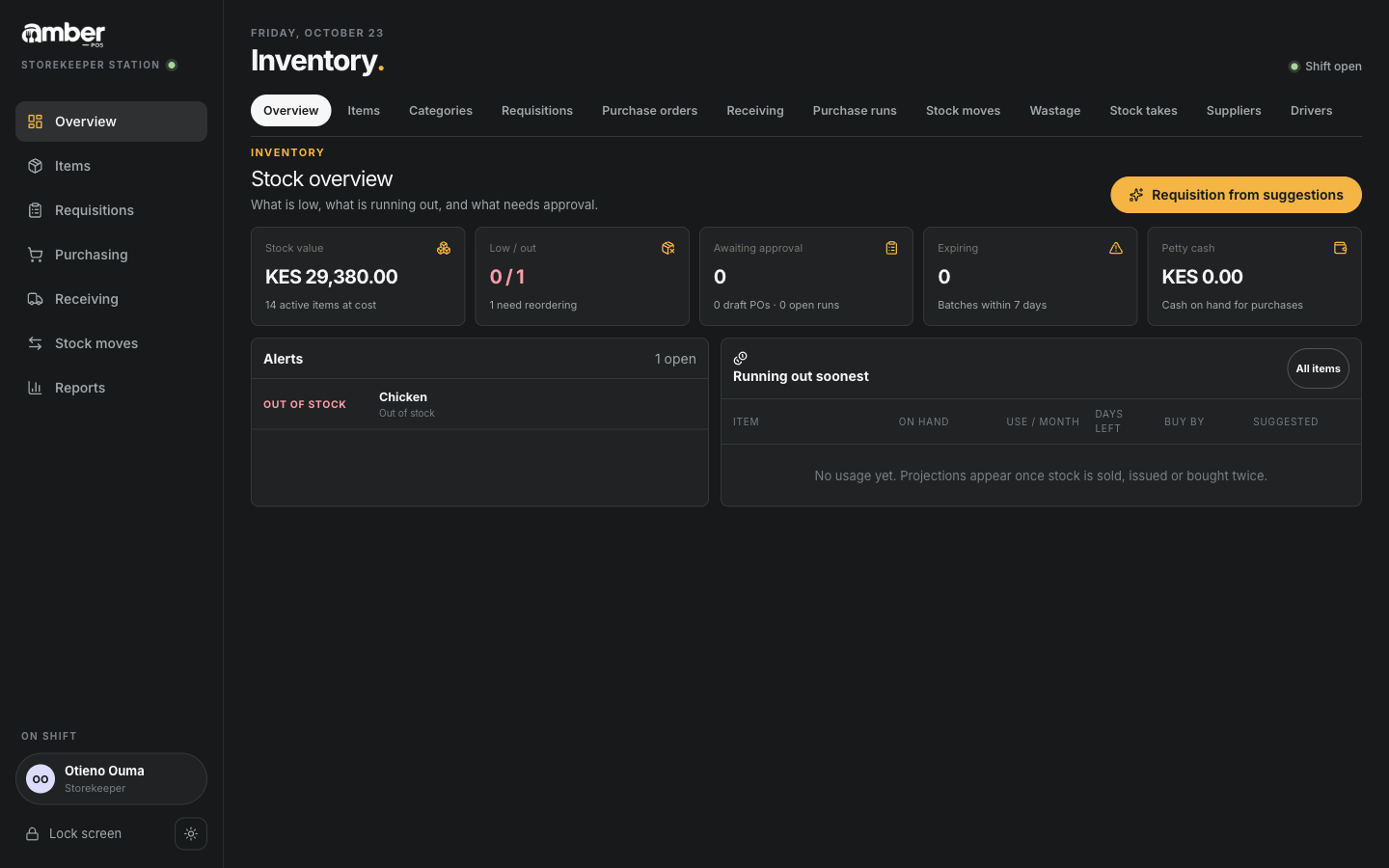
Stock overview for the storekeeper: chicken is out Purchasing › New purchase order.
Supplier: pick the supplier. Deliver to: the store the goods go to. Expected: the delivery date.
Add low-stock items from this supplier. Amber adds every low or out item this supplier sells, with the reorder quantity. Or add lines yourself with Add item.
Check each line's Qty and Price / unit. Change the price to what you agreed.
Save draft. The order shows Draft and Waiting for a manager to approve.
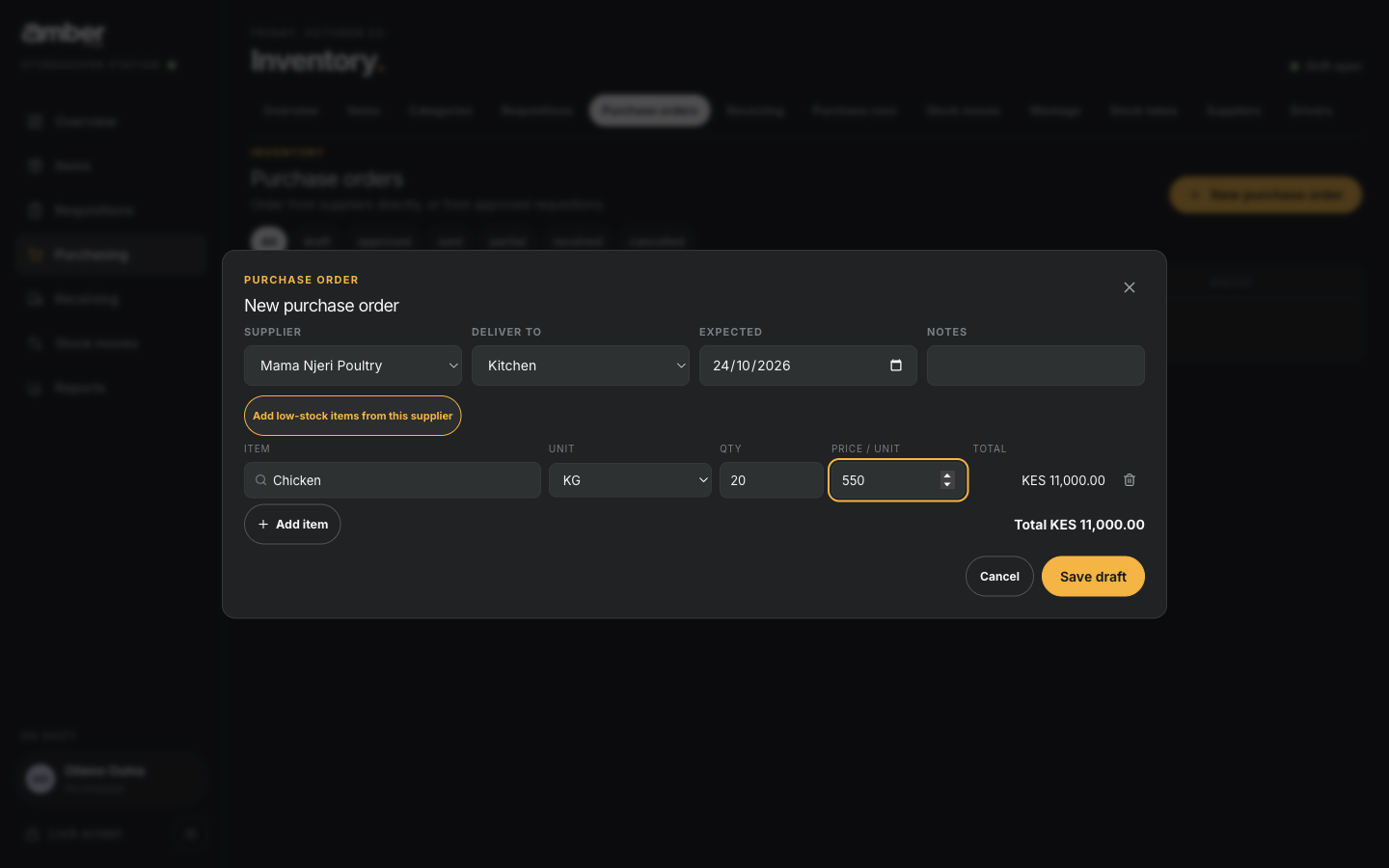
4. Approve and send it (manager or admin)
- Inventory › Purchase orders, then tap the draft order.
- Check the items, quantities and total, then Approve.
- Send it to the supplier: Send on WhatsApp opens WhatsApp with the order typed out, or Download PDF to email or print it.
- Mark sent, so everyone knows the supplier has it.
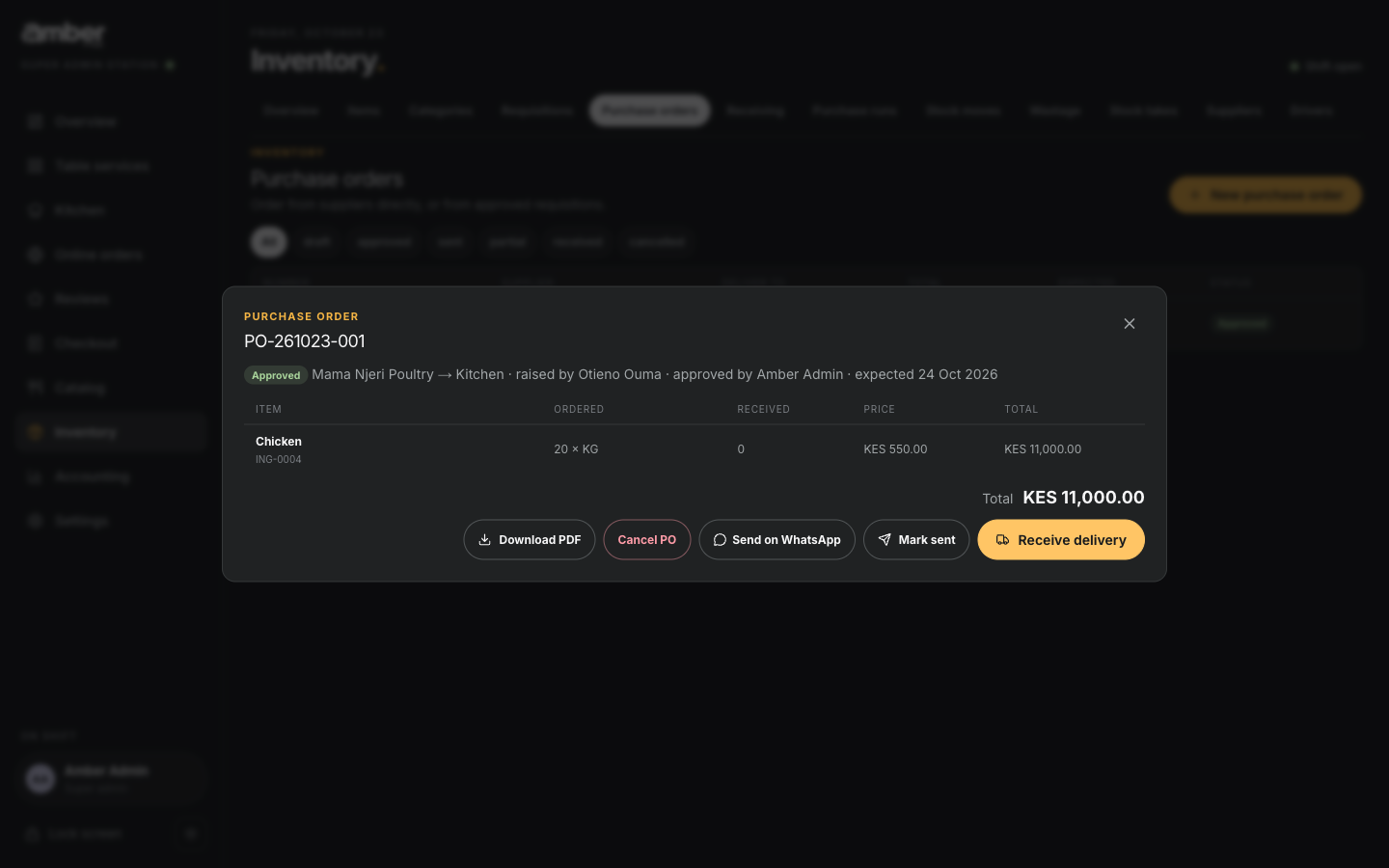
To stop an order, Cancel PO.
5. Receive the delivery (storekeeper)
Receiving. Orders still to be delivered are at the top, under Expected deliveries. Tap the order.
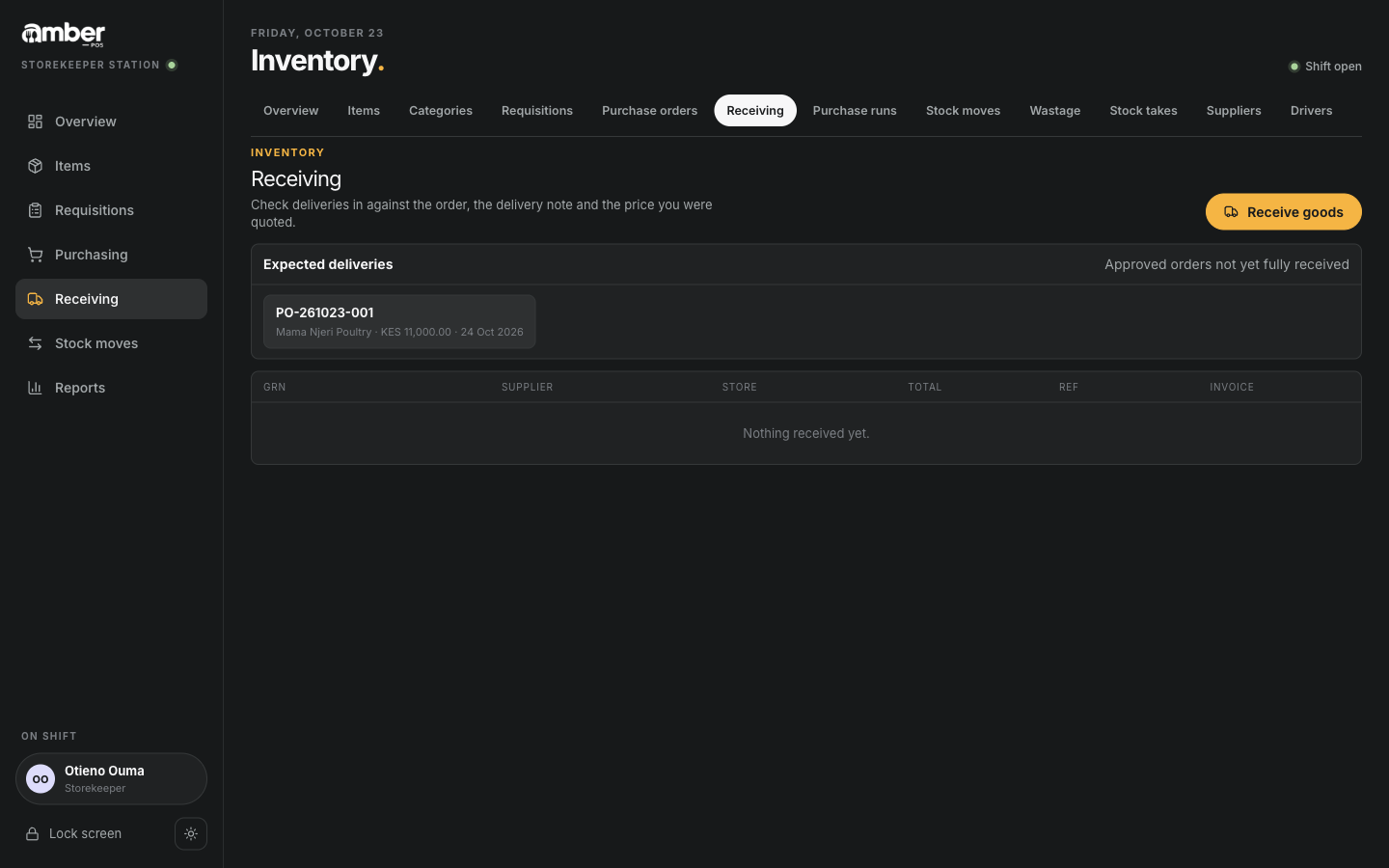
Receiving, with the order waiting for delivery Delivery note / invoice no.: the number on the supplier's paper.
For each line, type the quantity in Received. If something was refused (bad quality), type it in Rejected.
Optional: Add photo of the delivery note, a Batch number, an expiry date for perishables.
Notes: anything wrong, such as a shortage.
Receive into stock.
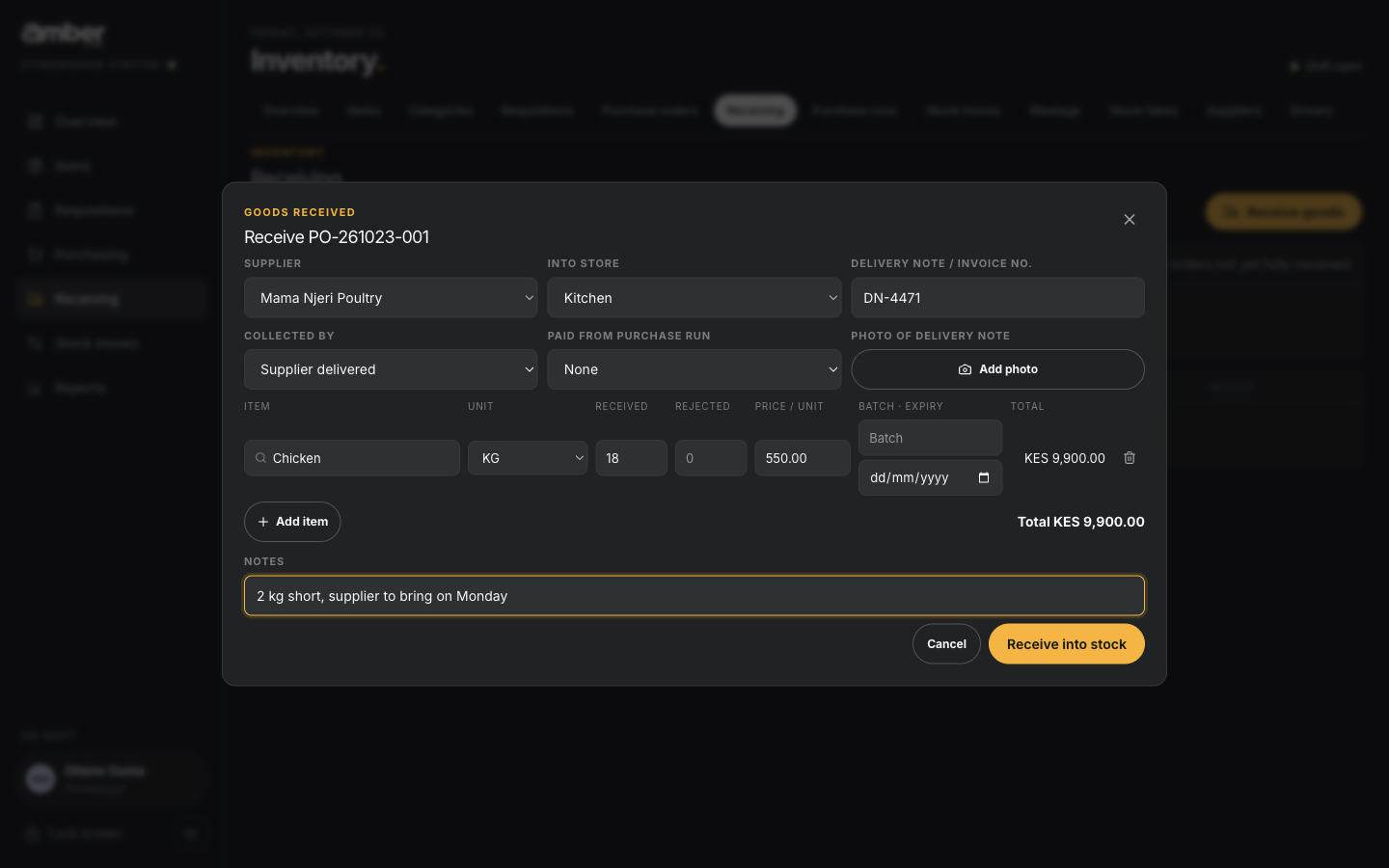
Amber creates a goods received note (GRN-…). The stock goes up straight away, and the item's average cost is updated with the new price.
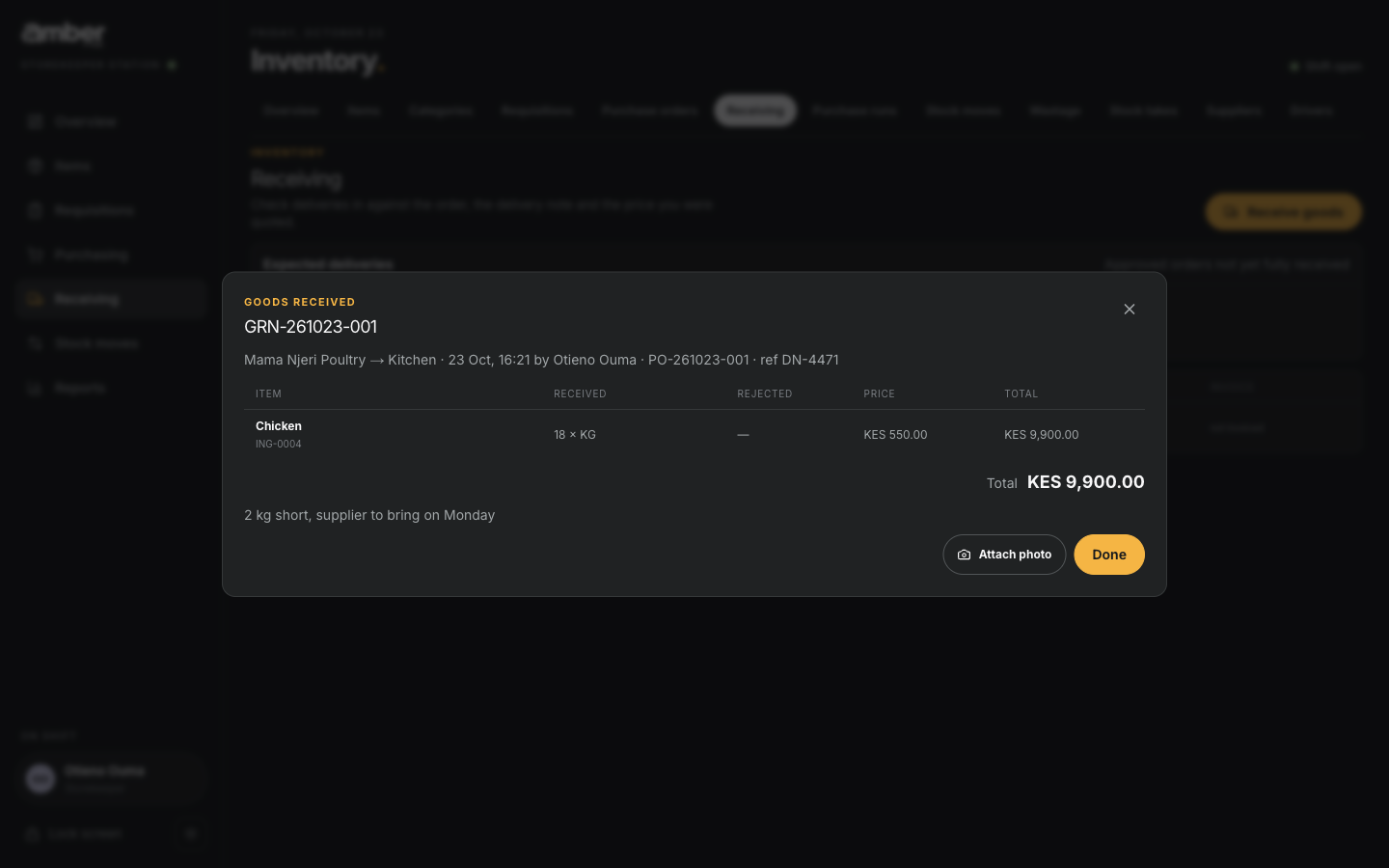
If less arrived than ordered, the order shows Partial and stays under Expected deliveries for the rest. Receive it again when the rest comes.
6. Record the invoice and pay (manager or admin)
Receiving goods doesn't create a bill by itself. When the supplier's invoice comes:
- Inventory › Payables › Record invoice.
- Supplier, Invoice number, and the eTIMS / CU invoice no. from the KRA receipt if it has one.
- Under Deliveries on this invoice, tick the deliveries it covers, then Use as amount.
- VAT (KES): type it, or tap 16%. Leave Due date empty to use the supplier's payment terms.
- Save invoice. It appears under Invoices as Unpaid, with the due date.
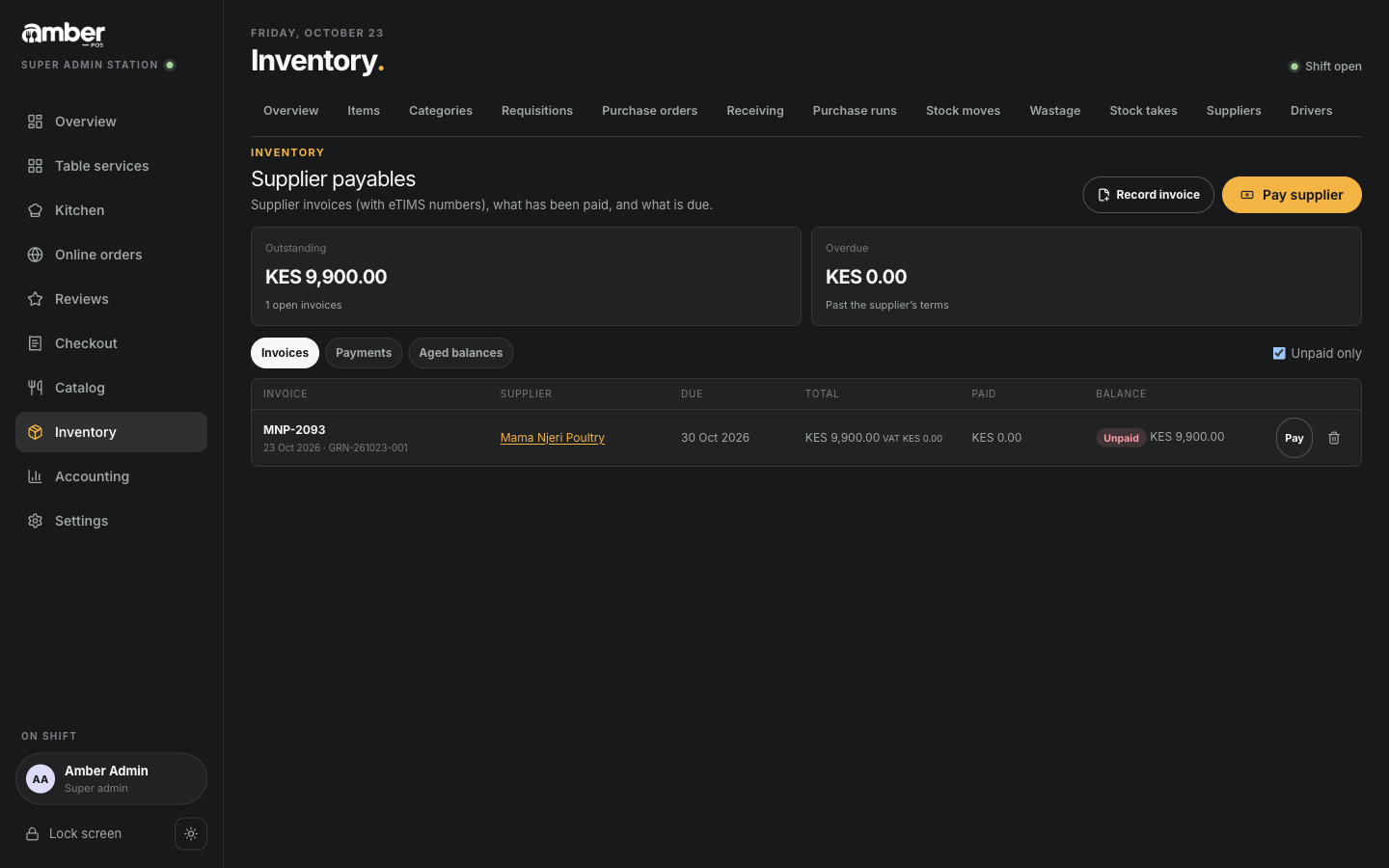
To pay:
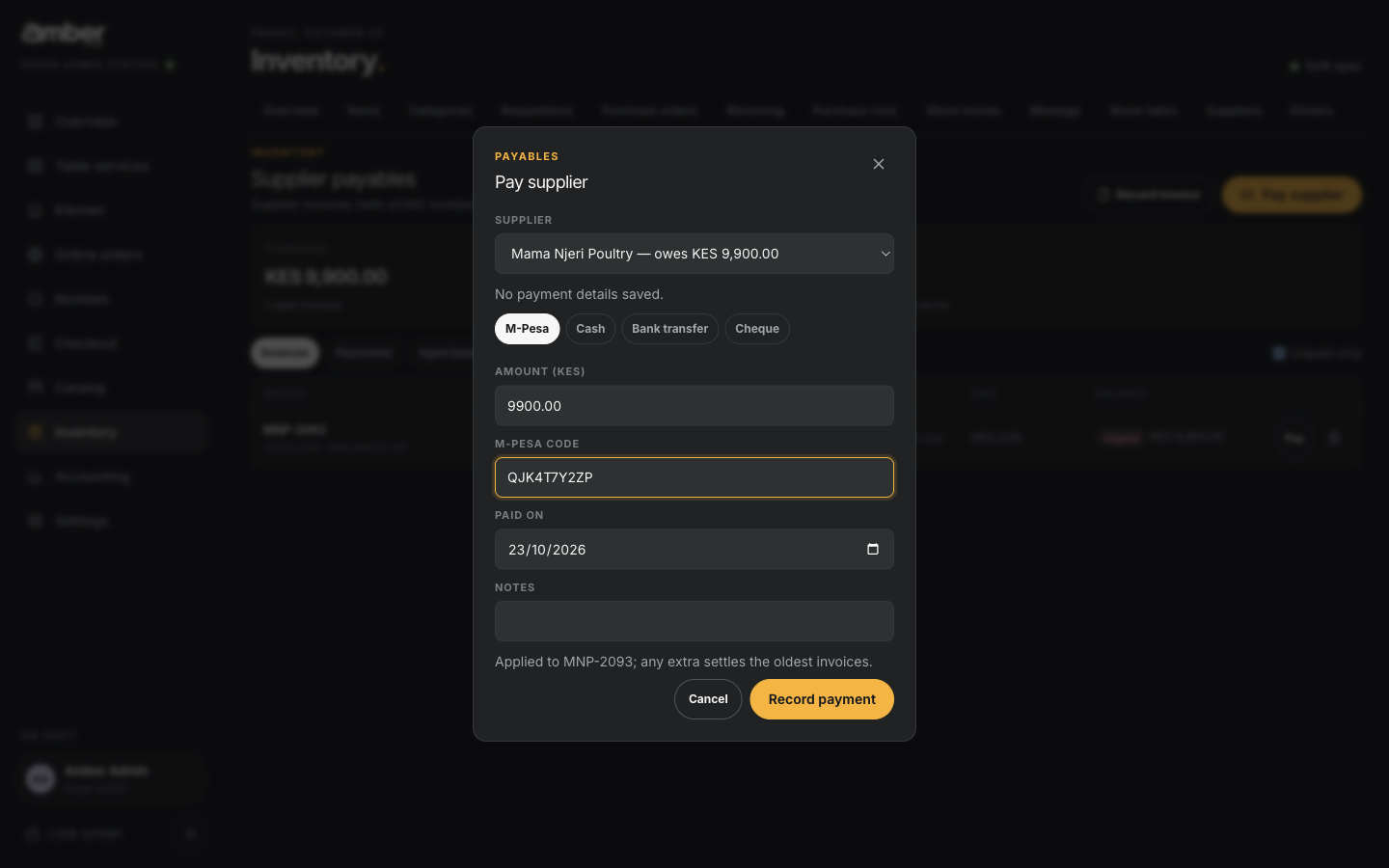
- Pay on the invoice.
- Pick how: M-Pesa, Cash, Bank transfer or Cheque. Type the M-Pesa code or reference. For cash taken from the petty cash box, tick Paid from petty cash.
- Record payment. The balance goes to zero and the payment shows under Payments and in the accounting cashbook (chapter 08).
Worked example
| Value | |
|---|---|
| Order | PO-261023-001 to Mama Njeri Poultry, 20 kg chicken × KES 550 = KES 11,000 |
| Approved by | Amber Admin |
| Delivered | 18 kg (2 kg short), delivery note DN-4471 → GRN-261023-001, KES 9,900 |
| Order status | Partial: 2 kg still expected |
| Invoice | MNP-2093, KES 9,900, due 30 Oct (7-day terms) |
| Paid | M-Pesa QJK4T7Y2ZP, KES 9,900 |
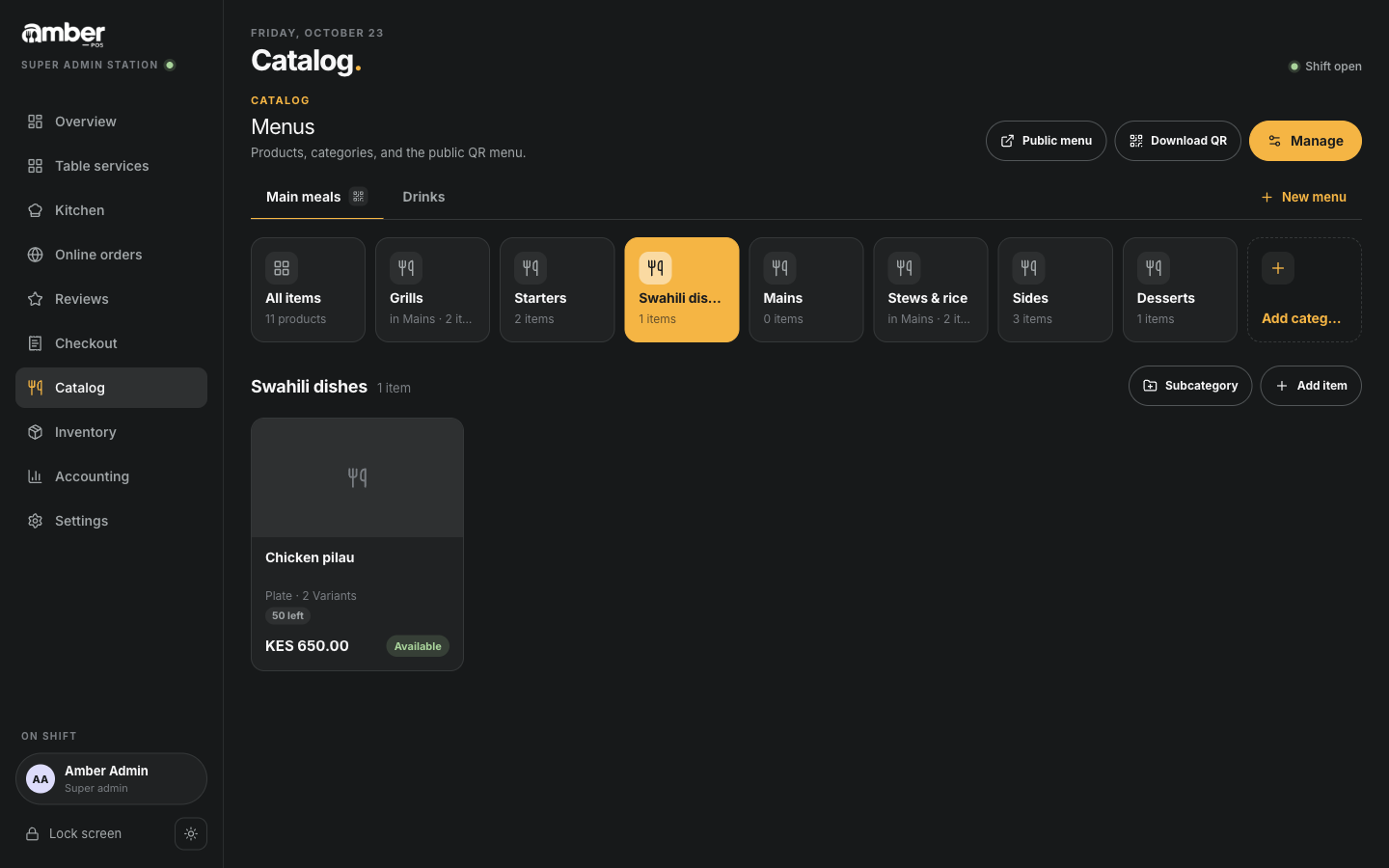
After the delivery, chicken is in stock again, so Chicken pilau comes back on the menu by itself, showing how many plates the stock allows.
Other ways to buy
- Purchase runs: someone takes a cash float to the market. Record the float, the goods bought against it (Receiving, Paid from purchase run), and the change returned.
- Requisitions: the kitchen asks the store for stock; approved requisitions can become purchase orders.
- Receive goods without an order, for a cash purchase: Receiving › Receive goods, supplier Market / cash purchase.
Common problems
| What you see | Why | What to do |
|---|---|---|
| Waiting for a manager to approve. and no Approve button | You are signed in as Store | A manager or the admin approves |
| The order isn't under Expected deliveries | It is still Draft, or was cancelled | Approve it first |
| +…% vs last next to a price | The price is at least 15% higher than last time | Check the price with the supplier before saving |
| Payables shows No invoices after a delivery | Deliveries don't create bills by themselves | Record invoice and tick the delivery |
| No uninvoiced deliveries from this supplier. | Every delivery from them is already on an invoice | Check the supplier and the delivery |
Checklist
- A purchase order went from Draft to Approved to Sent
- The delivery is received with the real quantities, and the stock went up
- The supplier's invoice is recorded against the delivery, with the right due date
- Paid invoices show a zero balance, and unpaid ones appear under Outstanding