
 Guide
Guide
03 — The menu (Catalog)
For the admin or a manager.
1. How the catalog works
Menu  (Main meals, Drinks)
 └── Category  (Swahili dishes, Grills, Sodas…; a category can sit inside another)
      └── Item  (Chicken pilau, KES 650)
           ├── Variants: sizes with their own price  (Regular 650 · Large 900)
└── Extras: paid add-ons (Extra kachumbari +100)- A menu groups what you sell. The demo has Main meals and Drinks.
- A category is a group of dishes inside a menu. Waiters tap categories to find dishes.
- An item is one dish or drink with a price. Its Classification (Food, Drink, Other) decides whether it counts as food or drink in reports.
- A variant is a size or version with its own price. When an item has variants, the waiter must pick one.
- An extra (add-on) is optional and adds to the price.
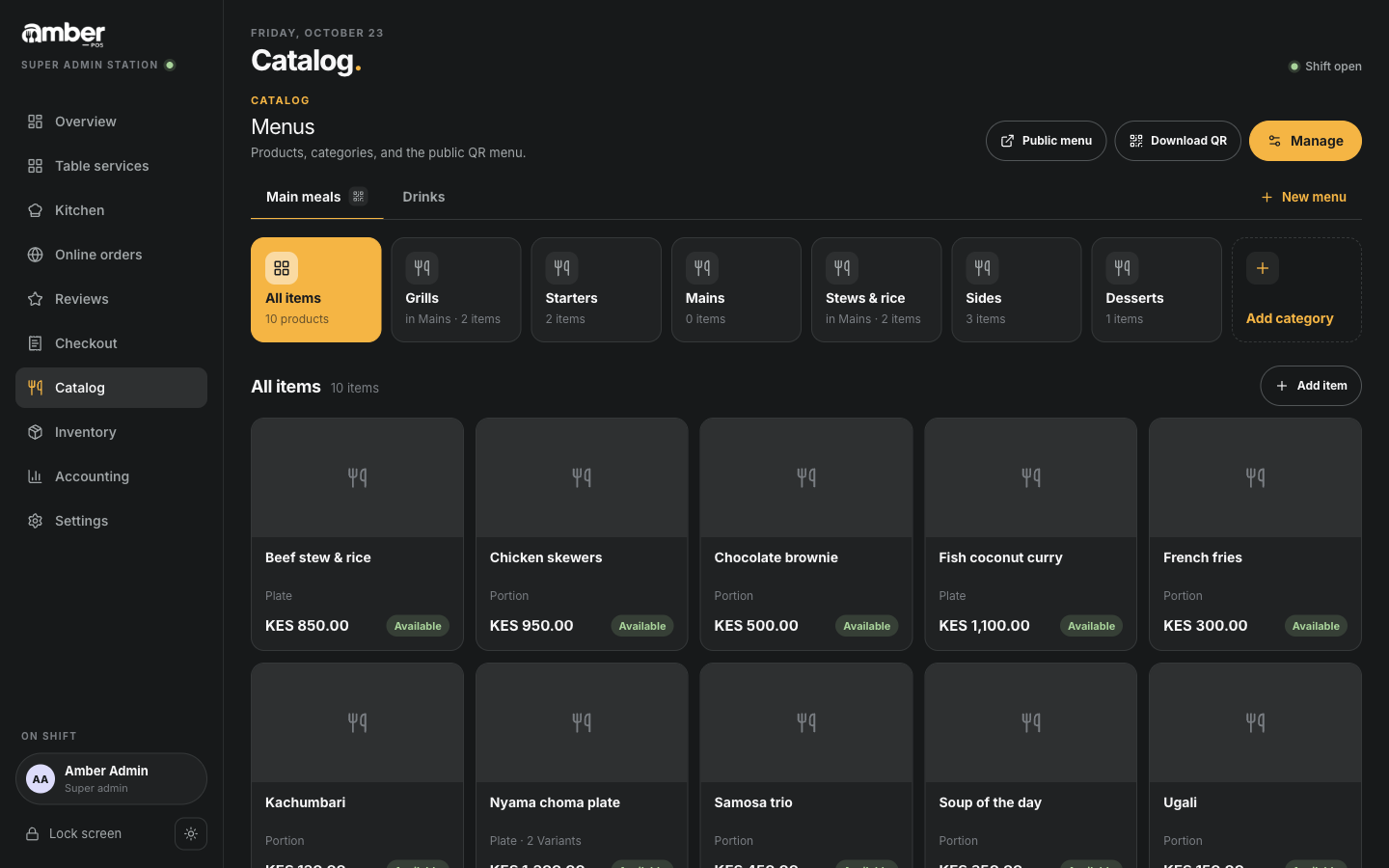
2. Add a category
- Catalog. Pick the menu across the top (here Main meals).
- Add category (the last tile).
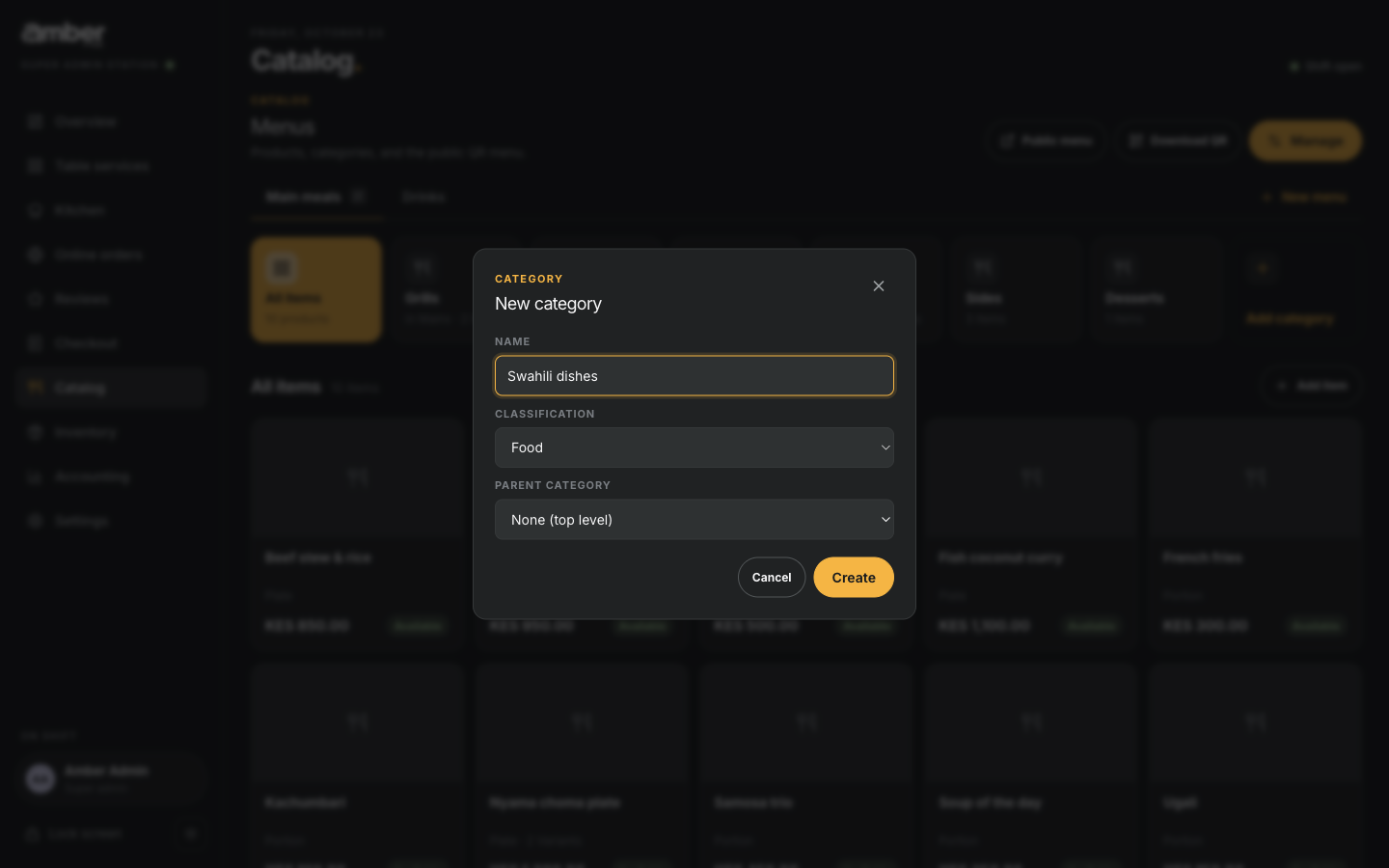
- Type the Name, pick the Classification, and leave Parent category at None (top level). To put it inside another category, pick that category as the parent.
- Create. The new tile appears with the others.
3. Add an item
Tap the category, then Add item.
On the Details tab fill in:
Field Example Notes Name Chicken pilau What waiters and guests see SKU (blank) Leave blank: Amber numbers it, e.g. FOOD-0011Category Swahili dishes Unit Plate Portion, Plate, Glass, Bottle… Base price 650 Including VAT if your prices include VAT (chapter 02) Description Spiced rice cooked with chicken… Shown on the digital menu Available ticked Untick to hide it from waiters Show on website ticked Only matters if you take online orders 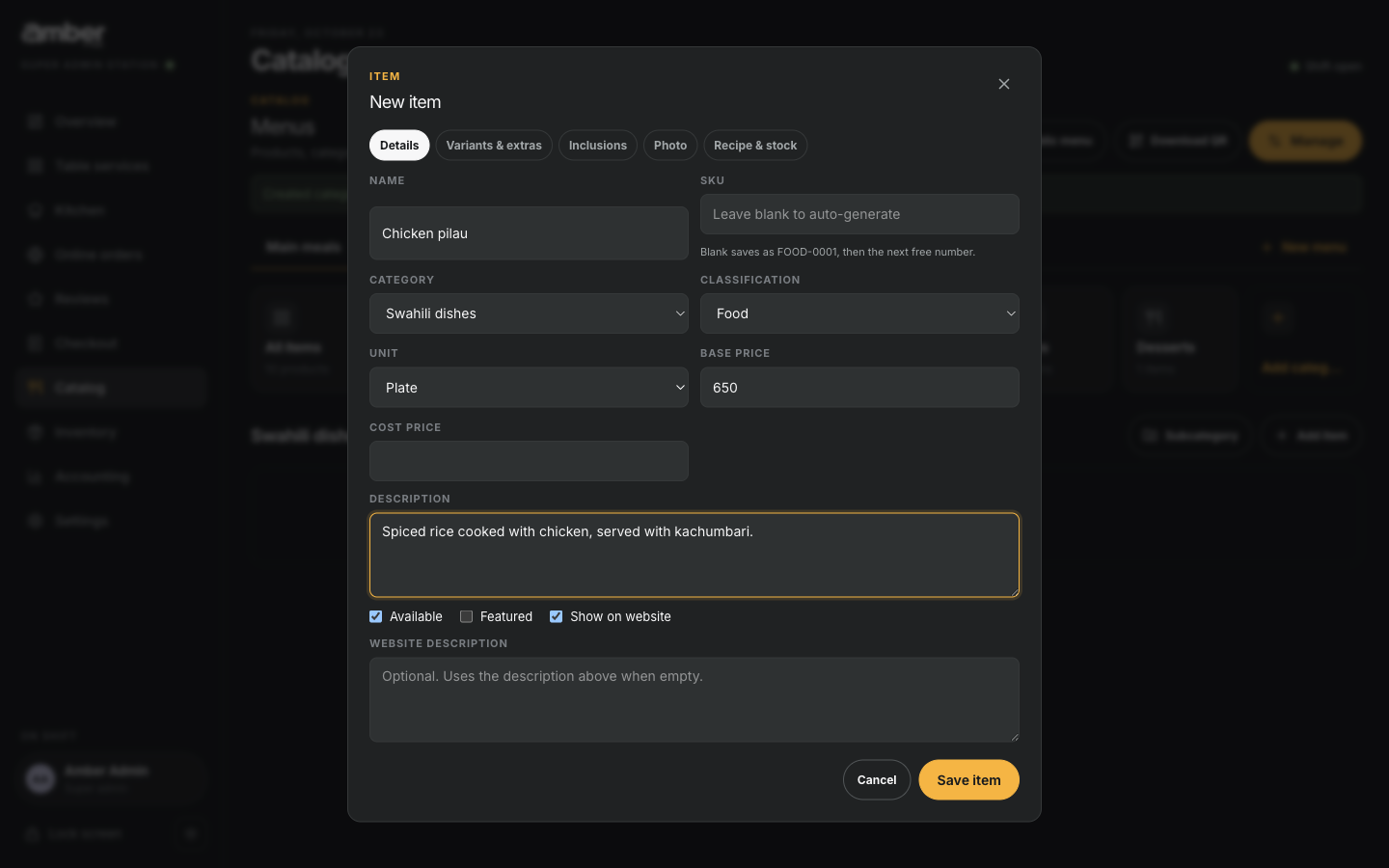
The New item form, Details tab Optional: Variants & extras.
- Add variant for each size: name and price (Regular 650, Large 900).
- Add extra for each paid add-on: name and price (Extra kachumbari 100).
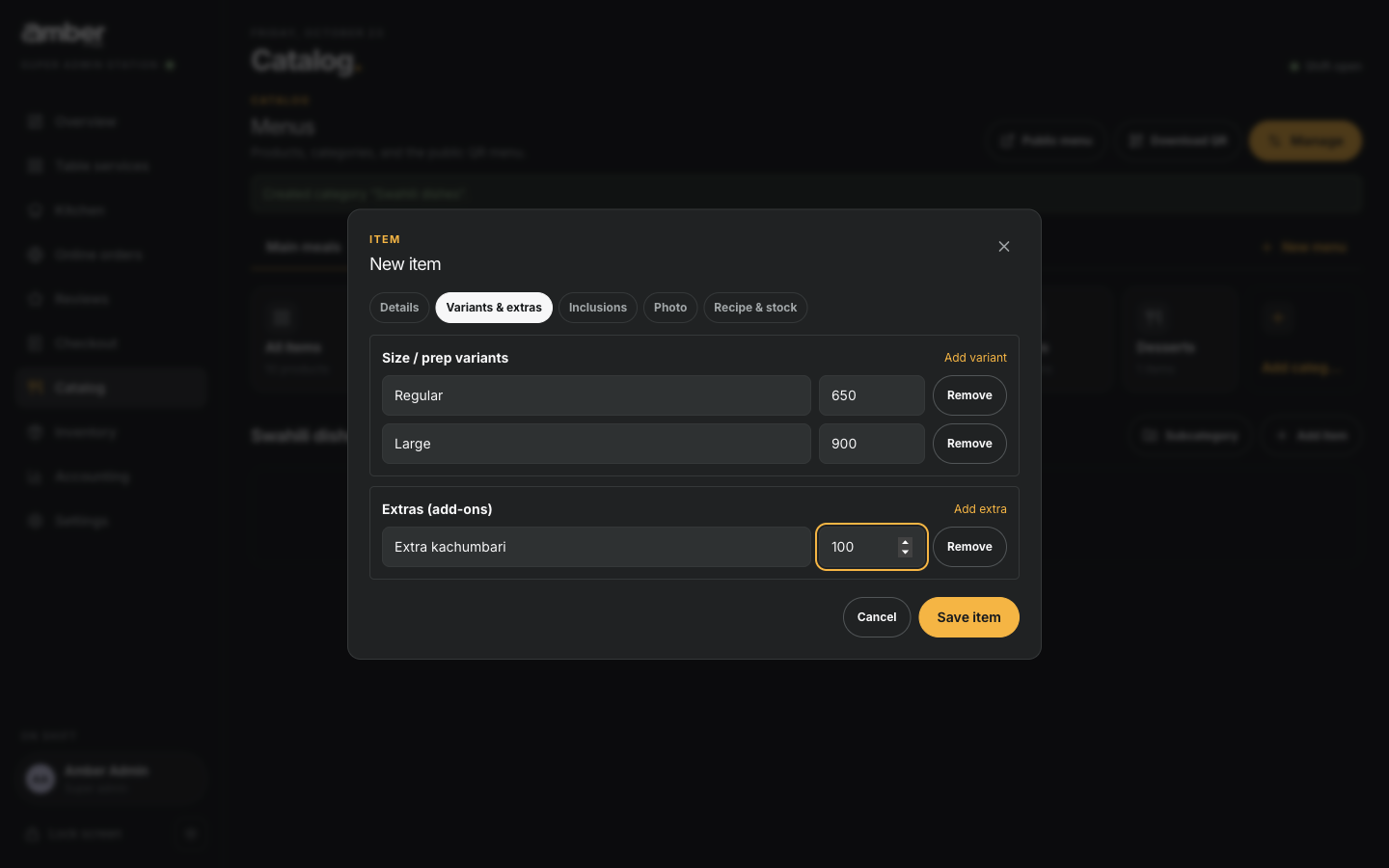
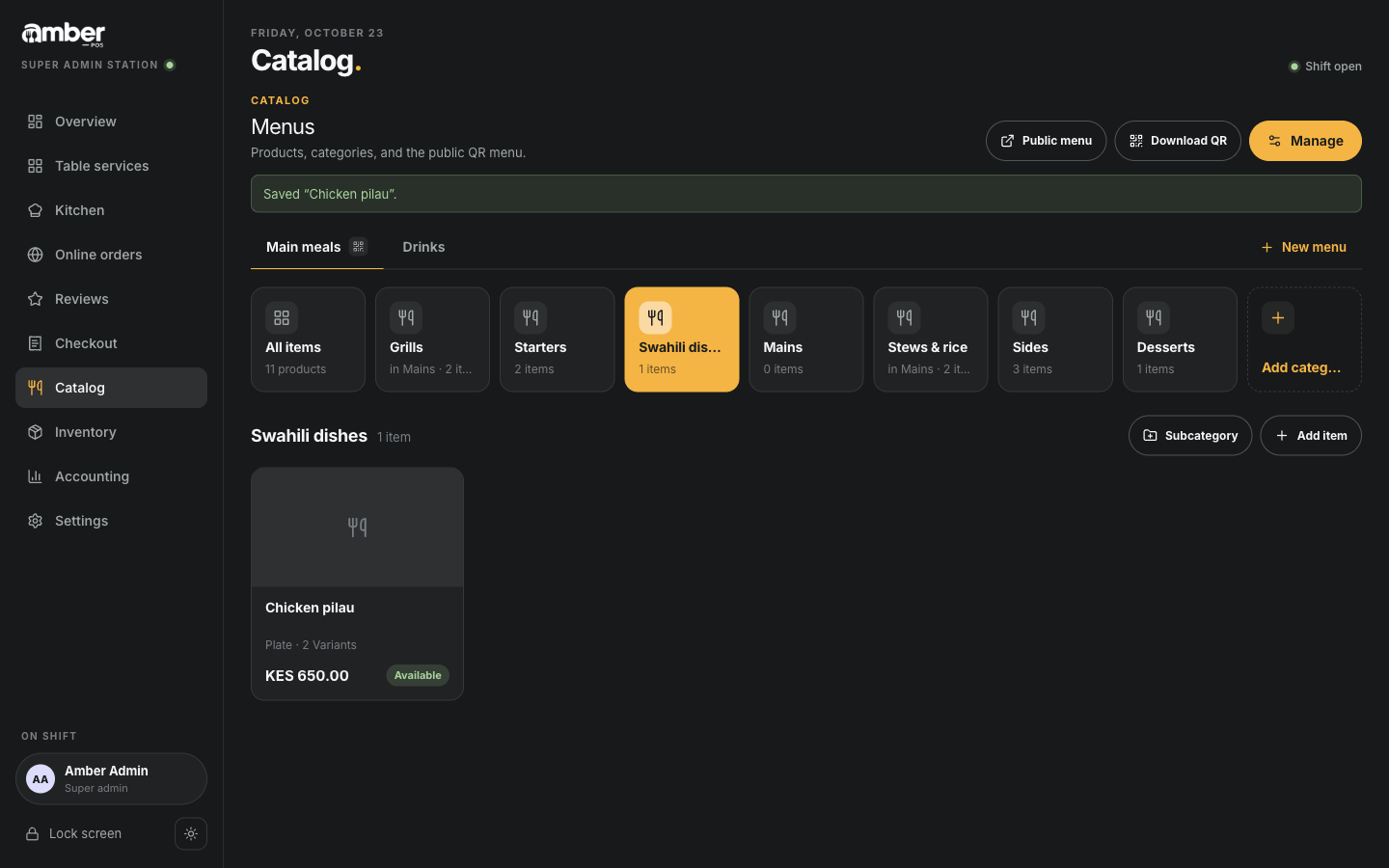
Two variants and one extra filled in Save item. You see Saved "Chicken pilau" and the item card shows Plate · 2 Variants, the price and Available.
The other tabs on an item: Inclusions (things that come free with it), Photo, and Recipe & stock, which links the dish to its ingredients (chapter 04).
4. Change or hide an item
- To change a price or name: tap the item card, change it, Save item.
- To stop selling it for today only (out of fish, machine broken): use Availability, not the catalog. The kitchen or cashier can do that (chapter 07).
- To stop selling it for good: untick Available in the item.
Common problems
| What you see | Why | What to do |
|---|---|---|
| Create a category before adding items. | The menu has no categories yet | Add a category first |
| The waiter can't find a new dish | It is in a menu or category the waiter didn't open, or Available is unticked | Search for it by name on the order screen; check Available |
| A dish shows Not available today | Someone marked it "86", or it ran out of stock | See chapter 07 |
Checklist
- Every dish and drink you sell is in the catalog with the right price
- Items with sizes have a variant for each size
- Paid extras are set up as extras, not as separate dishes
- A test order in chapter 06 shows the dish with the right price