
 Guide
Guide
02 — Setting up the outlet
For the admin. You do this once, before the first service.
1. What you set up
| Where | What | Why it matters |
|---|---|---|
| Settings › Receipt | Business name, M-Pesa till or paybill, receipt footer | Printed on every bill and receipt |
| Settings › Company | Legal name, address, phone, KRA PIN, VAT | Used on purchase orders and in profit reports |
| Settings › Users | One account per person | Names appear on orders, payments and stock movements |
| Settings › Staff PINs | One 4-digit PIN per role | How people sign in (chapter 01) |
| Table services (pencil) | Areas and tables | Waiters seat guests on these tables |
Only the admin sees Users and Staff PINs. A manager can open the other Settings tabs.
2. Receipt details
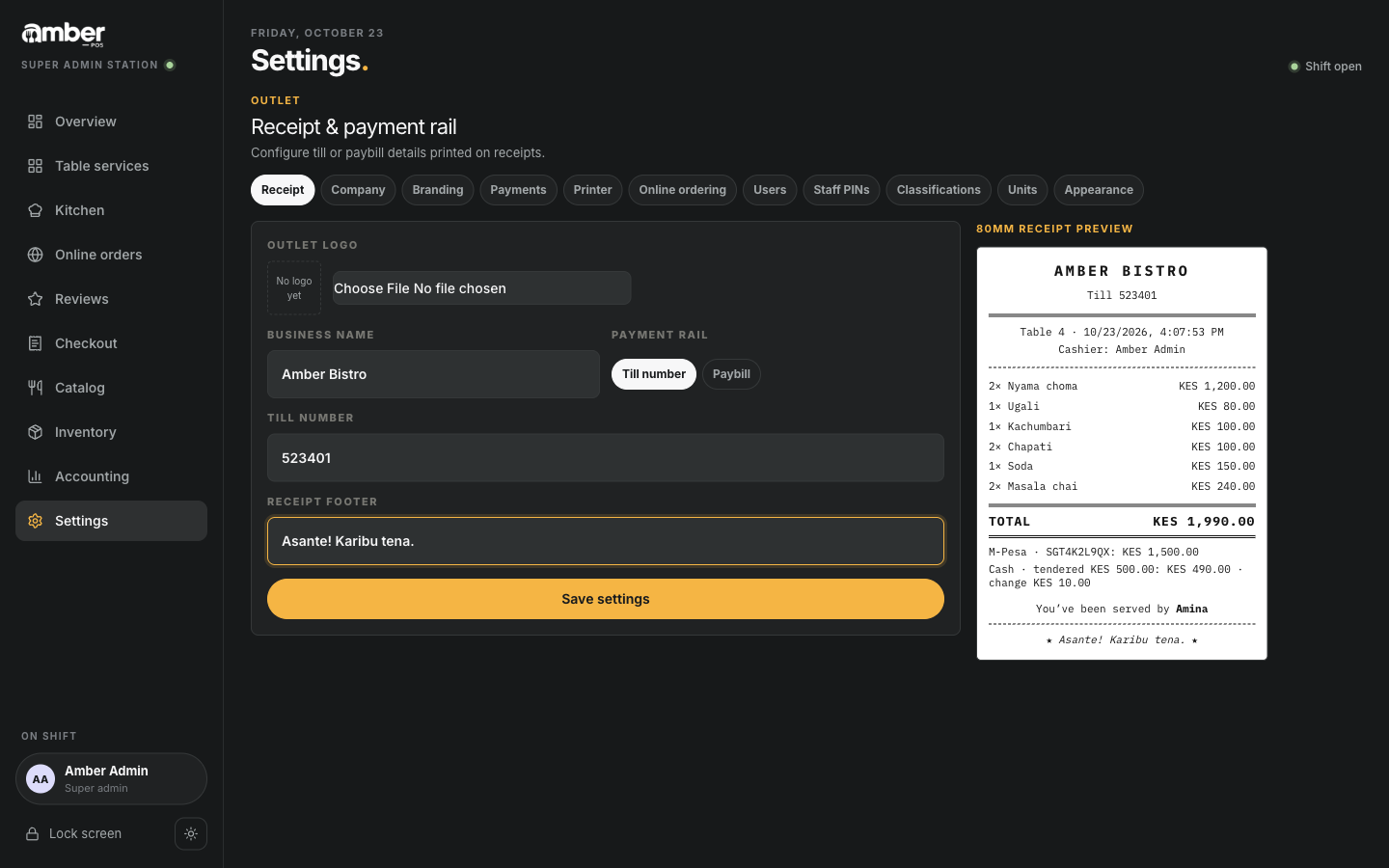
- Settings. The Receipt tab opens first.
- Business name: the name guests see, for example
Amber Bistro. - Payment rail: tap Till number or Paybill, then type the number. Guests use it to pay by M-Pesa, so check it twice.
- Receipt footer: a short thank-you line, for example
Asante! Karibu tena. - Optional: Outlet logo adds your logo at the top of receipts.
- Save settings. A green Receipt settings saved message appears.
The 80mm receipt preview on the right changes as you type, so you can see the result before you save.
3. Company details and VAT
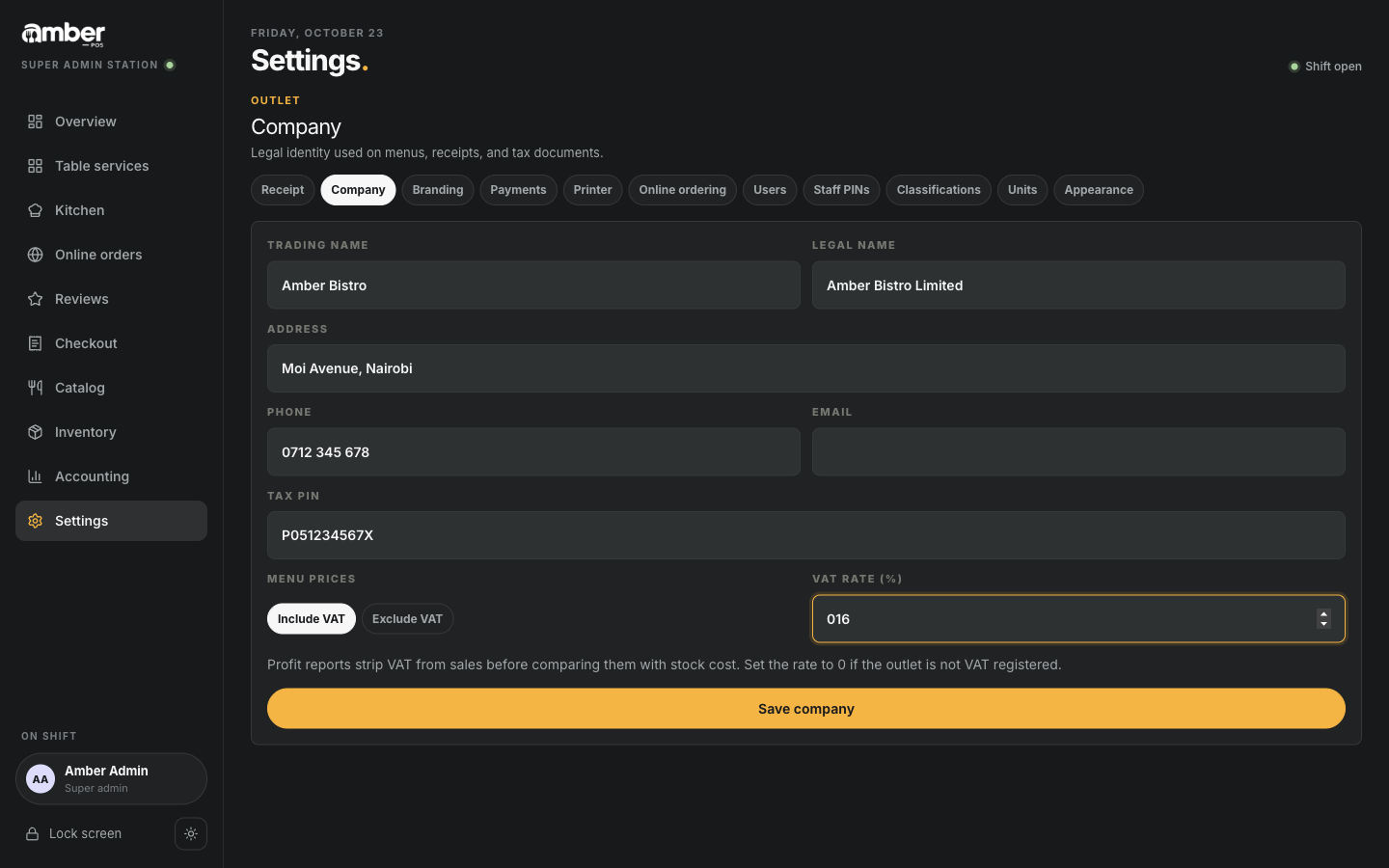
- Settings › Company.
- Fill in Legal name, Address, Phone, Email and Tax PIN (your KRA PIN).
- Menu prices: Include VAT if your menu prices already include VAT (usual in Kenya), or Exclude VAT.
- VAT rate (%):
16. Set it to0if the outlet is not VAT registered. - Save company. You see Company details saved.
4. Add staff
Add everyone who will use Amber, so their name goes on their work.
- Settings › Users › Add user.
- Type the Full name and Email, and pick the Role.
- Send invite. You see Invite sent to … and the person appears in the list.
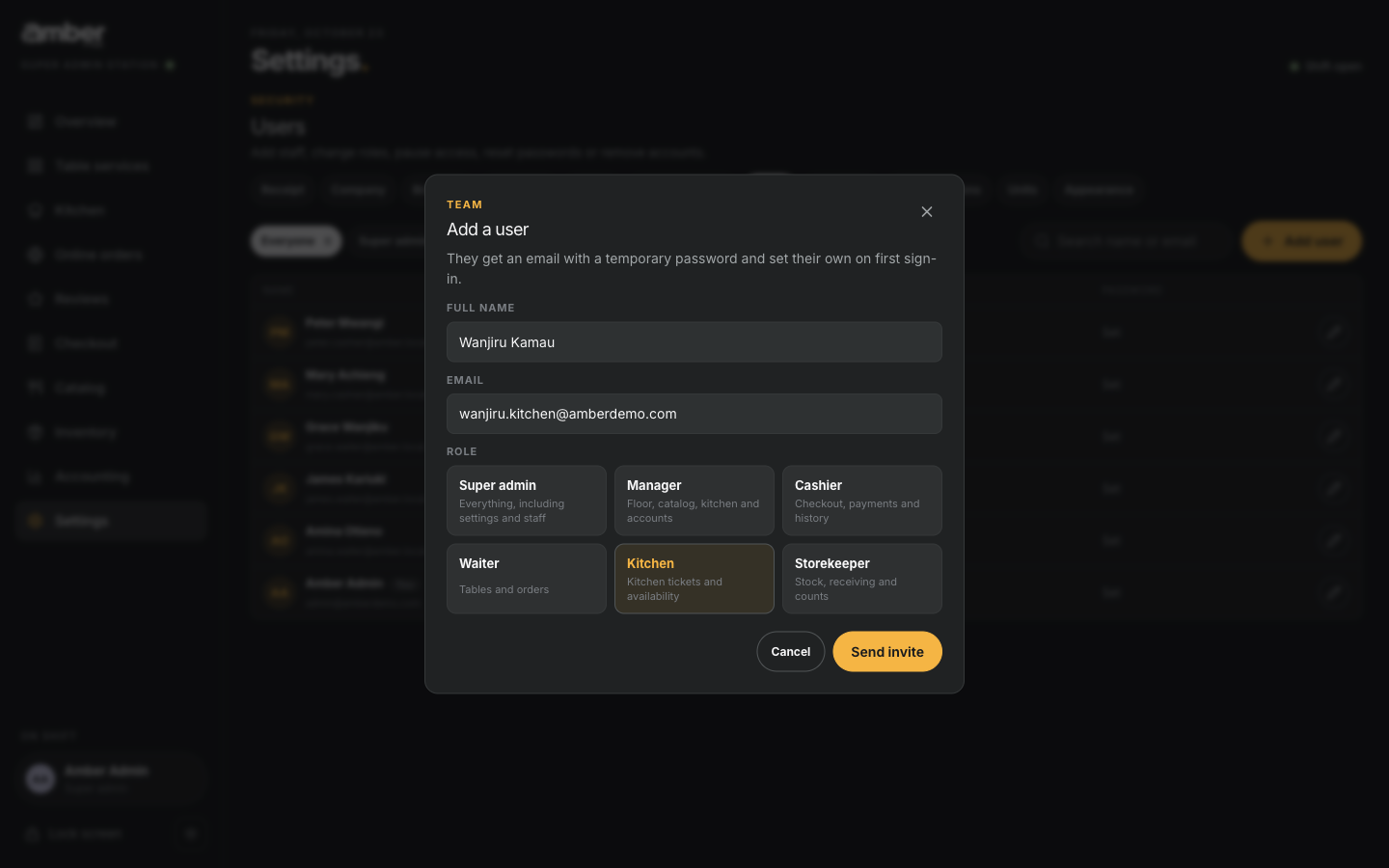
The person gets an email with a temporary password. They only need it to sign in by email; with a role PIN they can start straight away.
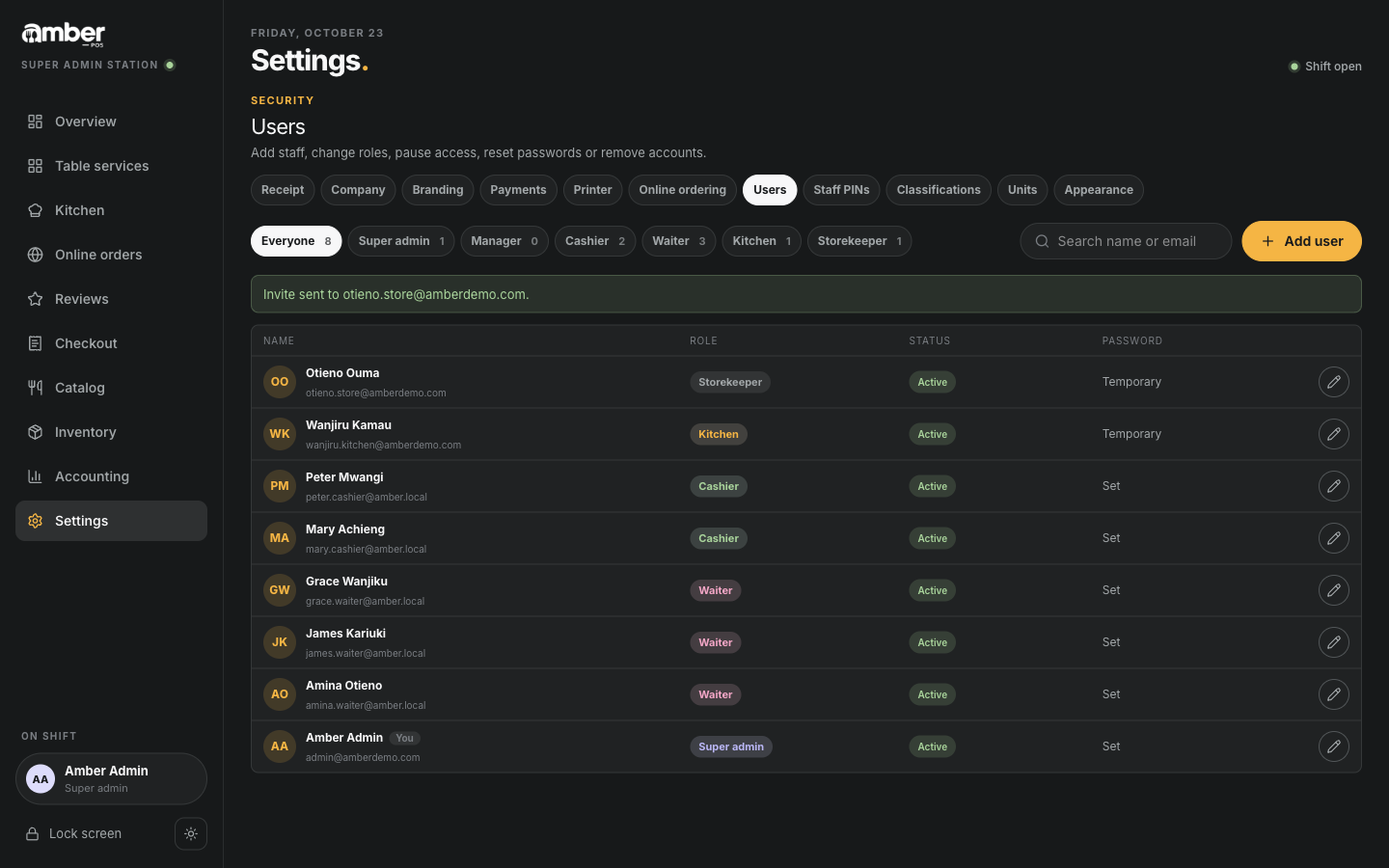
To change someone's role, deactivate them when they leave, or give them a new temporary password, tap the pencil next to their name.
5. Role PINs
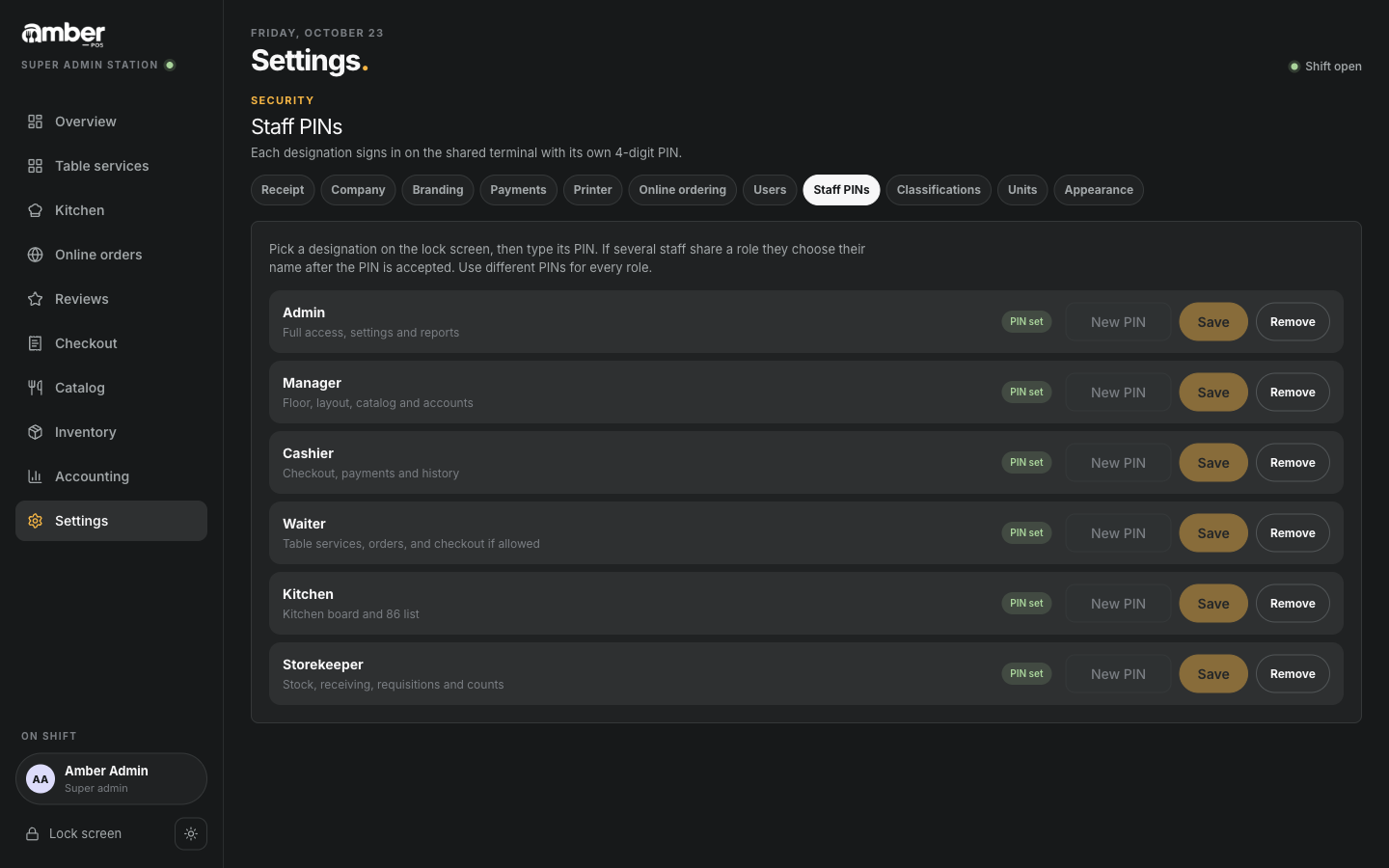
Settings › Staff PINs lists the six roles. Each shows PIN set or No PIN.
- To set or change a PIN: type 4 digits next to the role, then Save.
- Remove turns PIN sign-in off for that role. Those people then sign in with email.
6. The floor plan
Waiters seat guests on tables, so build the floor plan before service.
- Table services, then the pencil button (Edit layout) at the top right of the floor.
- New area. An area is one room or space: Main hall, Terrace, VIP.
- In the panel on the right, type the Area name and press Enter.
- Add first table, then + Table for each extra table. Tables are numbered T01, T02, …
- Drag tables to where they stand in the room. Tap a table to change its Name, Shape (Square, Round, Long) and number of Seats.
- The tick button saves the layout. You see Layout saved.
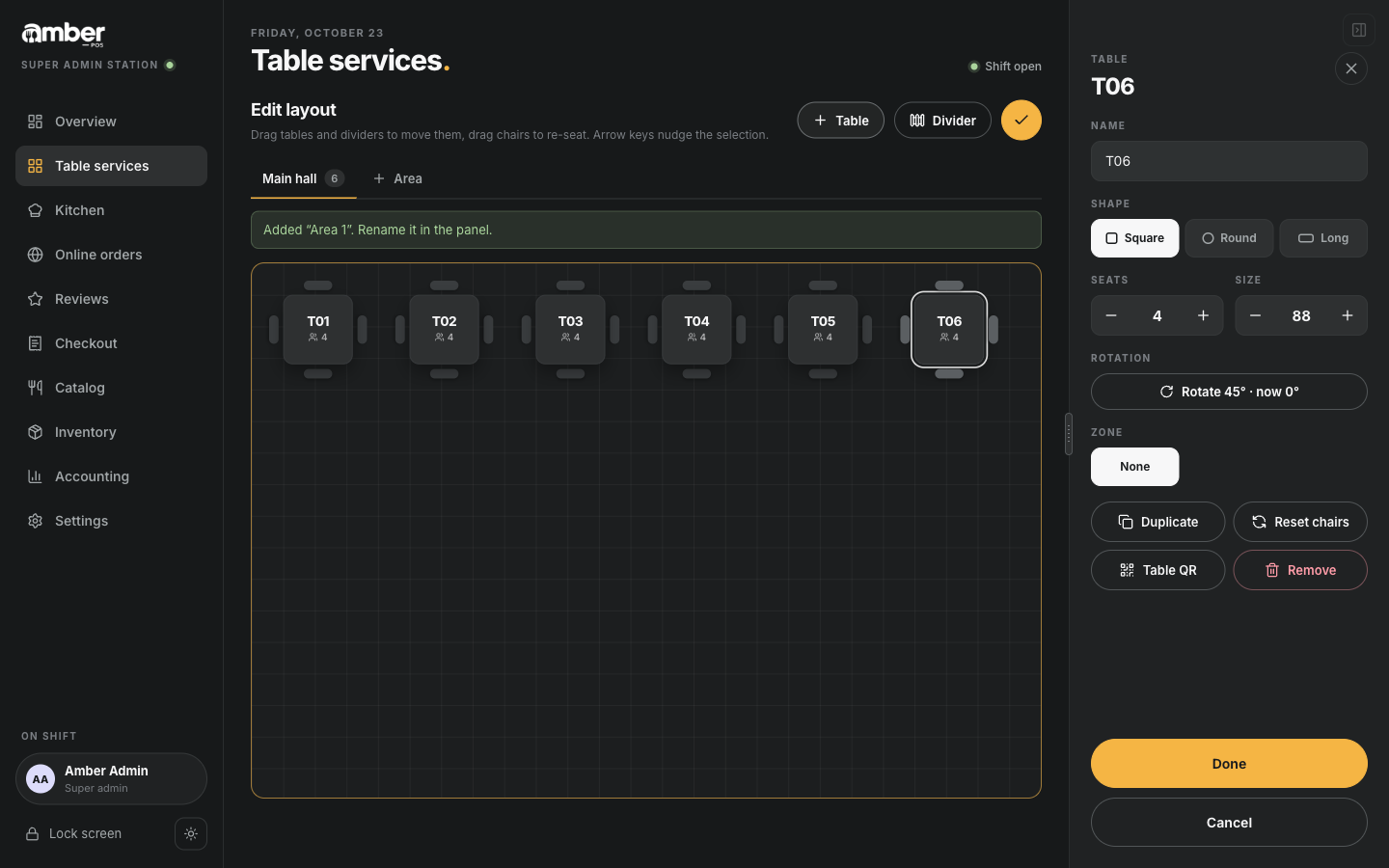
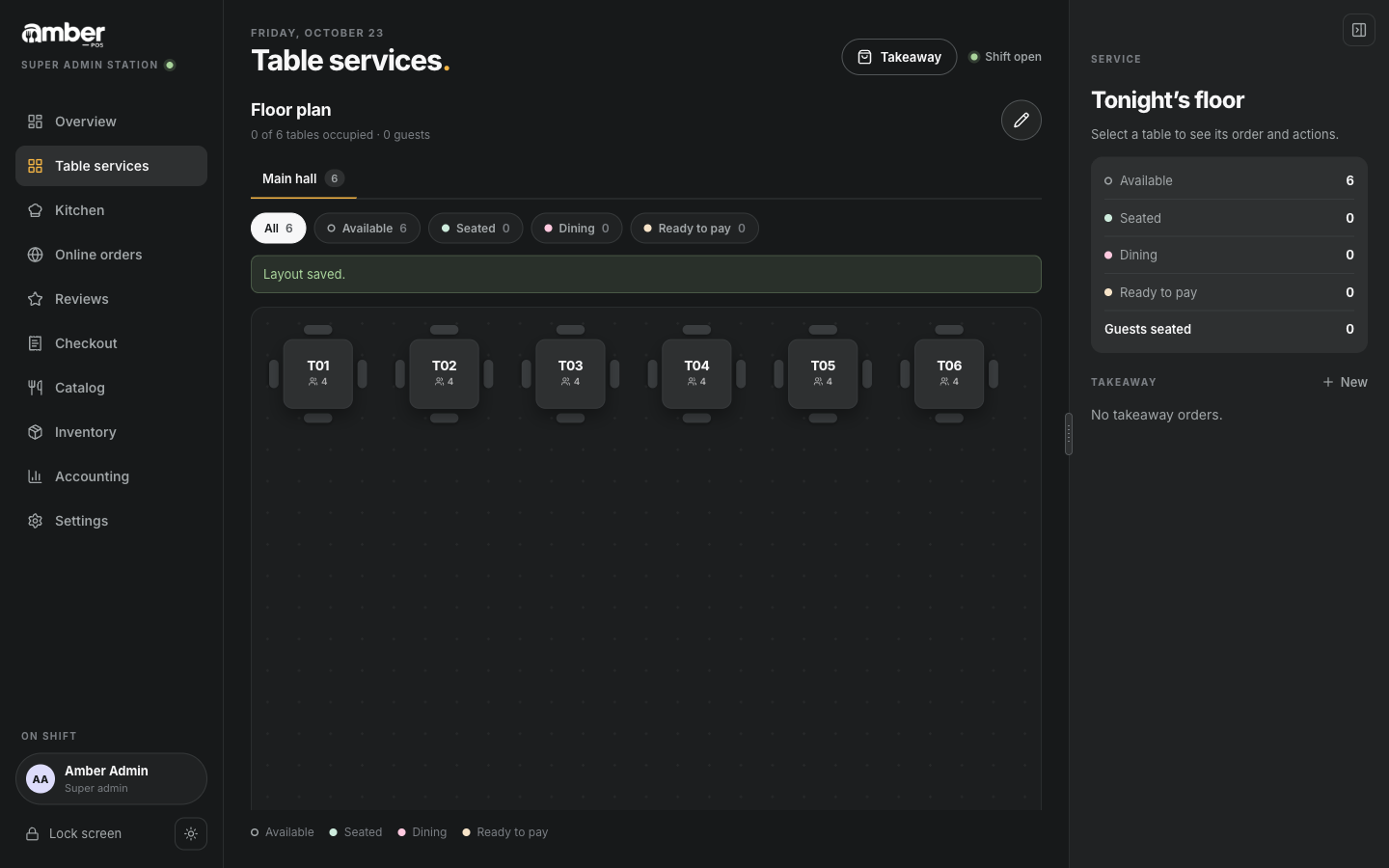
Table colours show their state during service: Available, Seated, Dining, Ready to pay (chapter 06).
Worked example
In the demo, Amber Bistro is set up like this:
| Setting | Value |
|---|---|
| Business name | Amber Bistro |
| Till number | 523401 |
| Receipt footer | Asante! Karibu tena. |
| Legal name, address | Amber Bistro Limited, Moi Avenue, Nairobi |
| VAT | Prices include VAT, 16% |
| New staff | Wanjiru Kamau (Kitchen), Otieno Ouma (Storekeeper) |
| Floor | Main hall with tables T01–T06, 4 seats each |
Common problems
| What you see | Why | What to do |
|---|---|---|
| A user with this email already exists | That email is already in the list | Search for it in Settings › Users; reactivate the person instead |
| User was not invited because the email could not be sent | The outlet's email (SMTP) settings are wrong, so Amber cancels the invite | Ask whoever installed Amber to check the SMTP settings, then invite again |
| A PIN must be exactly 4 digits. | The PIN is shorter or has letters | Type exactly 4 numbers |
| Users and Staff PINs tabs are missing | You are signed in as Manager | Sign in as Admin |
Checklist
- The receipt preview shows your business name, till or paybill, and footer
- Company details saved with the right VAT setting
- Every member of staff is in Settings › Users with the right role
- Every role you use has a PIN, and the demo PINs are changed
- The floor plan shows every table, and all are Available